
Tuesday, August 29, 2023

Thursday, August 24, 2023
Install Ansible on Red Hat Linux | How to setup Ansible on Red Hat Linux VM | Ansible install on Azure Linux Virtual Machine | Ansible Azure Integration
How to setup Ansible on Red Hat Linux VM and Integrate with Azure Cloud?
Ansible is #1 configuration management tool. It can also be used for infrastructure provisioning as well. or You can use Ansible in combination of Terraform which can take care of infra automation and Ansible can do configuration management. We will be setting up Ansible on Red Hat VM in Azure cloud And create some resources in Azure Cloud by using Ansible playbooks.

Ansible Architecture:
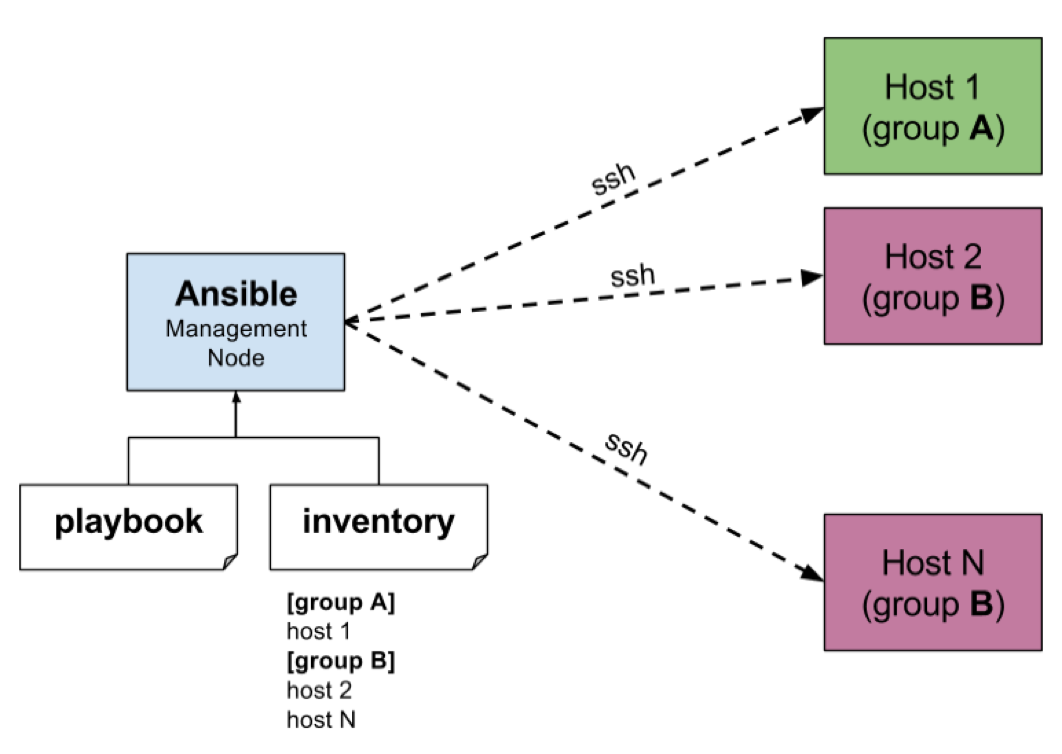
The best way to install Ansible in Linux is to use PIP, a package manager for Python.
Pre-requisites:
- Create new Red Hat VM in Azure Cloud for setting up Ansible, just open port 22 in firewall rule.
- Install Azure CLI on Red Hat Linus VM
- Service principal to create any resources in Azure cloud using Azure CLI
How to setup Ansible on Red Hat Linux VM
Watch Steps in YouTube channel:
Change host name to AnsibleMgmtNode
sudo hostnamectl set-hostname AnsibleMgmtNode
sudo hostnamectl set-hostname AnsibleMgmtNode
Update Repository
sudo yum update -y
sudo yum update -y
Install Python-pip3


sudo yum install python3-pip -y
Upgrade pip3
sudo pip3 install --upgrade pip

# Install Ansible
pip3 install "ansible==2.9.17"

check Ansible version
ansible --version

# Install Ansible azure_rm module for interacting with Azure.
pip3 install ansible[azure]
Authenticate with Azure

To configure Azure credentials, you need the following information:
- Your Azure subscription ID and tenant ID
- The service principal application ID and secret
Create an Azure Service Principal
Login to Azure first
az login
Enter Microsoft credentials
Run the following commands to create an Azure Service Principal:
az ad sp create-for-rbac --name <service-principal-name> \
--role Contributor \
--scopes /subscriptions/<subscription_id>
Save the above output in a file as you will not be able retrieve later.
Configure the Ansible credentials using one of the following techniques:
Configure the Ansible credentials using one of the following techniques:
Option 1: Create Ansible credentials file
In this section, you create a local credentials file to provide credentials to Ansible. For security reasons, credential files should only be used in development environments.
mkdir ~/.azure
vi ~/.azure/credentials
Insert the following lines into the file. Replace the placeholders with the service principal values.
[default]
subscription_id=<subscription_id>
client_id=<service_principal_app_id>
secret=<service_principal_password>
tenant=<service_principal_tenant_id>
Option 2: Define Ansible environment variables
On the host virtual machine, export the service principal values to configure your Ansible credentials.
export AZURE_SUBSCRIPTION_ID=<subscription_id> export AZURE_CLIENT_ID=<service_principal_app_id> export AZURE_SECRET=<service_principal_password> export AZURE_TENANT=<service_principal_tenant_id>
Test Ansible installation
You now have a virtual machine with Ansible installed and configured!
This section shows how to create a test resource group within your new Ansible configuration. If you don't need to do that, you can skip this section.
Option 1: Use an ad-hoc ansible command
Run the following ad-hoc Ansible command to create a resource group:
ansible localhost -m azure_rm_resourcegroup -a "name=my-rg123 location=eastus"
Option 2: Write and run an Ansible playbook
Create a simple playbook to create resource group in Azure.
sudo vi create-rg.yml
---
- hosts: localhost
connection: local
tasks:
- name: Creating resource group
azure_rm_resourcegroup:
name: "myResourceGroup"
location: "eastus"
Execute the playbook using ansible-playbook command.
ansible-playbook create-rg.yml
Now Login to Azure cloud to see if the resource group have been created.

Clean up Resources
Save the following code as delete-rg.yml
sudo vi delete-rg.yml
- hosts: localhost tasks: - name: Deleting resource group - "{{ name }}" azure_rm_resourcegroup: name: "{{ name }}" state: absent register: rg - debug: var: rg
ansible-playbook delete-rg.yml --extra-vars "name=myResourceGroup"
check in Azure cloud to see if the resource group have been deleted.
Wednesday, August 23, 2023
Automate Azure cloud infrastructure setup using Ansible and Azure DevOps pipeline | How to integrate Ansible with Azure DevOps | Integrating Ansible with Azure DevOps Pipelines |
Ansible is an open-source configuration management tool that automates cloud provisioning, configuration management, and application deployments. Using Ansible you can provision virtual machines, containers, network, and complete cloud infrastructures.
Automate Azure cloud infrastructure setup using Ansible and Azure pipeline

Integrate Ansible with Azure Cloud
Integrating Ansible with Microsoft Azure allows you to automate and manage your Azure infrastructure using Ansible playbooks and modules. Ansible provides a collection of Azure-specific modules that enable you to provision and configure resources in Azure.
To configure Azure credentials, you need the following information:
- Your Azure subscription ID and tenant ID
- The service principal application ID and secret
Pre-requisites:
- Azure account subscription, click here if you don't have one.
- Azure CLI needs to be installed.
- Service principal to create any resources in Azure cloud using Azure cloud shell or Azure CLI
Login to Azure
az login
Enter Microsoft credentials
Create Azure Service Principal
Run the following commands to create an Azure Service Principal:
az ad sp create-for-rbac --name <service-principal-name> \
--role Contributor \
--scopes /subscriptions/<subscription_id>
Save the above output in a file as you will not be able retrieve later.
Create an Ansible playbook
Create a simple playbook to create a resource group in Azure. Make sure you modify the name of the resource group and location below.
---
- hosts: localhost
connection: local
tasks:
- name: Creating resource group
azure_rm_resourcegroup:
name: "my-rg12"
location: "eastus"
Create Azure YAML build pipeline:
Login to Azure Devops --> https://dev.azure.com
Select project dashboard.
Go to Pipelines -> New pipeline --> Click on Azure Repos Git or any SCM where you have playbooks stored. Select repo, click on Starter pipeline.

Add below four pipeline variables with value received from service principal creation.
AZURE_SUBSCRIPTION_ID
AZURE_CLIENT_ID
AZURE_SECRET
AZURE_TENANT

Add below tasks:
- Install Ansible on build agent
- Install Ansible rm module on build agent
- Execute Ansible playbook for creating resource group in Azure cloud.
trigger:
- main
pr: none # Disable PR triggers, can be adjusted as needed
pool:
vmImage: 'ubuntu-latest'
steps:
- script: |
# Install Ansible
pip3 install "ansible==2.9.17"
displayName: 'Install Ansible'
- script: |
# Install Ansible rm module
pip3 install ansible[azure]
displayName: 'Install Ansible rm module'
- script: |
# Run Ansible playbook to create resource group
ansible-playbook create-rg.yml
displayName: 'Run Ansible Playbook'
env:
AZURE_SUBSCRIPTION_ID: $(AZURE_SUBSCRIPTION_ID)
AZURE_CLIENT_ID: $(AZURE_CLIENT_ID)
AZURE_SECRET: $(AZURE_SECRET)
AZURE_TENANT: $(AZURE_TENANT)
Save the pipeline and run it.

Now Login to Azure cloud to see if the resource group have been created.
Watch Steps in YouTube channel:
Tuesday, August 22, 2023
Install Azure CLI in Red Hat Linux | How to setup Azure CLI in Linux | How to Install Azure CLI in Red Hat Enterprise Linux
The Azure command-line interface (Azure CLI) is a set of commands used to create and manage Azure resources. The Azure CLI is available across Azure services and is designed to get you working quickly with Azure, with an emphasis on automation. Azure CLI is Microsoft's cross-platform command-line experience for managing Azure resources.
Azure CLI can be installed by following below steps:
Import the Microsoft repository key
sudo rpm --import https://packages.microsoft.com/keys/microsoft.asc
For RHEL 8 or CentOS Stream 8, add packages-microsoft-com-prod repository:
sudo dnf install -y https://packages.microsoft.com/config/rhel/8/packages-microsoft-prod.rpm
Install with the dnf install command
sudo dnf install azure-cli -y
Check the version of Azure CLI
az version
Run the Azure CLI with the az command. To sign in, use the az login command.
az login
az login
How to create Red Hat Linux Virtual Machine (VM) in Azure? | Create Red Hat Linux VM in Azure | How to connect to Azure VM from your local machine
How to Create Red Hat Linux Virtual Machines(VM) in Azure Cloud?

Watch Steps in YouTube channel:
Pre-requisites:
- Azure account subscription, click here if you don't have one.
- SSH client such as Git bash, putty or iTerm(mac os)
Steps to create Red Hat Linux Virtual Machine in Azure

3. Click on Add/Create virtual machine.


Enter resource group name, select region.

4. Select security type as Standard
5. Now enter the details as below or give values per your subscription and requirements. Select Red Hat Enterprise Linux 8.x VM from the drop down.

6. choose authentication type as SSH public key, enter azureuser as user name, enter key pair name.
This step will eventually create SSH keys and allow you to download in your machine.

7. Under Networking

Go with Allow selected ports - SSH port 22
And also select Delete public IP and NIC when VM is deleted option

8. Under Monitoring, disable Boot diagnostics

9. Click on Review, it may take a few mins to finish the validations. If all good, it should pass the validations. Click on Create.
10. Now download the SSH keys and save it locally.

11. Once created, Click on virtual machines.

12. You should see the new VM is running like below:

How to connect to Azure VM from your local machine?

1. Now select that instance, click on connect

2.Then choose SSH

3. Enter ssh key name in private key path
4. Copy the value as it shows below in your local terminal(iTerm for Apple laptop) or Git bash for Windows laptop.

chmod 400 myUbuntuVM_key.pem
6. Now ssh into VM from your local machine using the key
ssh -i myUbuntuVM_key.pem azureuser@your_ip_address

Now it should show you that you are connected to Azure.

Monday, August 21, 2023
Install Ansible on Ubuntu | How to setup Ansible on Azure Ubuntu 22.0.4 instance | Ansible install on Azure Ubuntu Virtual Machine
Ansible is #1 configuration management tool. It can also be used for infrastructure provisioning as well. or You can use Ansible in combination of Terraform which can take care of infra automation and Ansible can do configuration management. We will be setting up Ansible on Azure Ubuntu VM.
Ansible Architecture:
The best way to install Ansible for Ubuntu is to add the project's PPA (personal package archive) to your system.
Pre-requisites:
Create new Ubuntu VM in Azure Cloud for installing Ansible, just open port 22.
Change host name to AnsibleMgmtNode
sudo hostnamectl set-hostname AnsibleMgmtNode
sudo hostnamectl set-hostname AnsibleMgmtNode
Update Repository
sudo apt-get update
sudo apt-get update
Install Python-pip3
sudo apt install python3-pip -y
Upgrade pip3
sudo pip3 install --upgrade pip
# Install Ansible.
pip3 install "ansible==2.9.17"
# Install Ansible azure_rm module for interacting with Azure.
pip3 install ansible[azure]
# Install Ansible.
sudo apt install ansible -y
Subscribe to:
Posts (Atom)
🚀 Live AI-Enabled DevSecOps & Cloud Engineering Bootcamp – Sep 2026
Live AI-Enabled DevSecOps & Cloud Engineering Bootcamp from Coach AK - Sep 2026 Schedule

-
 Let us learn how to create and configure a Self-Hosted Agent in Azure DevOps (ADO). What is an Agent? An agent is computing infrastructure w...
 -
 GitHub is one of the popular git-based version control systems. GitHub is very good example for Software-as-a-service, ...
 -
 Please find steps for integrating SonarQube with GitHub Actions: Pre-requisites: Make sure SonarQube is up and running Make sure Java Projec...