Showing posts with label EC2. Show all posts

Wednesday, September 14, 2022

How To Setup Jenkins using BootStrap Scripts in AWS EC2 Instance while Launching | How to Run commands on your EC2 instance at launch

What is bootstrap script in aws?

If you want to execute some commands during boot up(launch), you can execute it easily by loading script in user data section during EC2 launch. Bootstrap scripts run only once - when the instance is instantiated for the 1st time.

Please follow the below steps to create an EC2 instance.  We will be installing Java, Maven and Jenkins during boot up.

How to create EC2 instance in AWS console?

What is EC2 instance? 

It is virtual server provided by AWS. We will be using this EC2 to setup Jenkins. Please follow the below steps to create an EC2 instance.

Pre-requisites:

Steps:
1: Login to AWS console by clicking this link -->  https://aws.amazon.com/console/
click on All services, Click on Compute -->  Click on EC2


2. Click on Launch instance


3. Enter Name as Jenkins-EC2 and enter 1 as number of instance


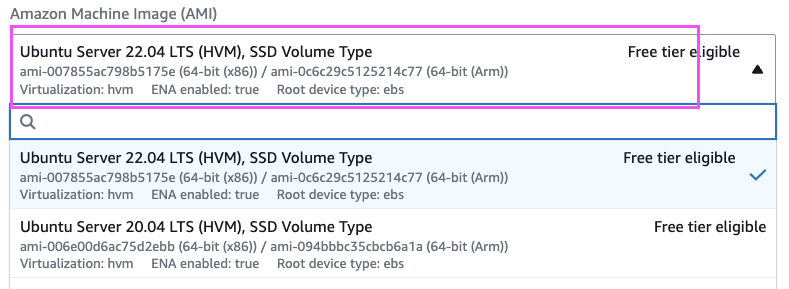
4. Select Ubuntu and choose Ubuntu server 22.0.4 as AMI


5. Enter t2.small as instance type
6. You can choose existing Key
7. Under Network settings, Click Edit


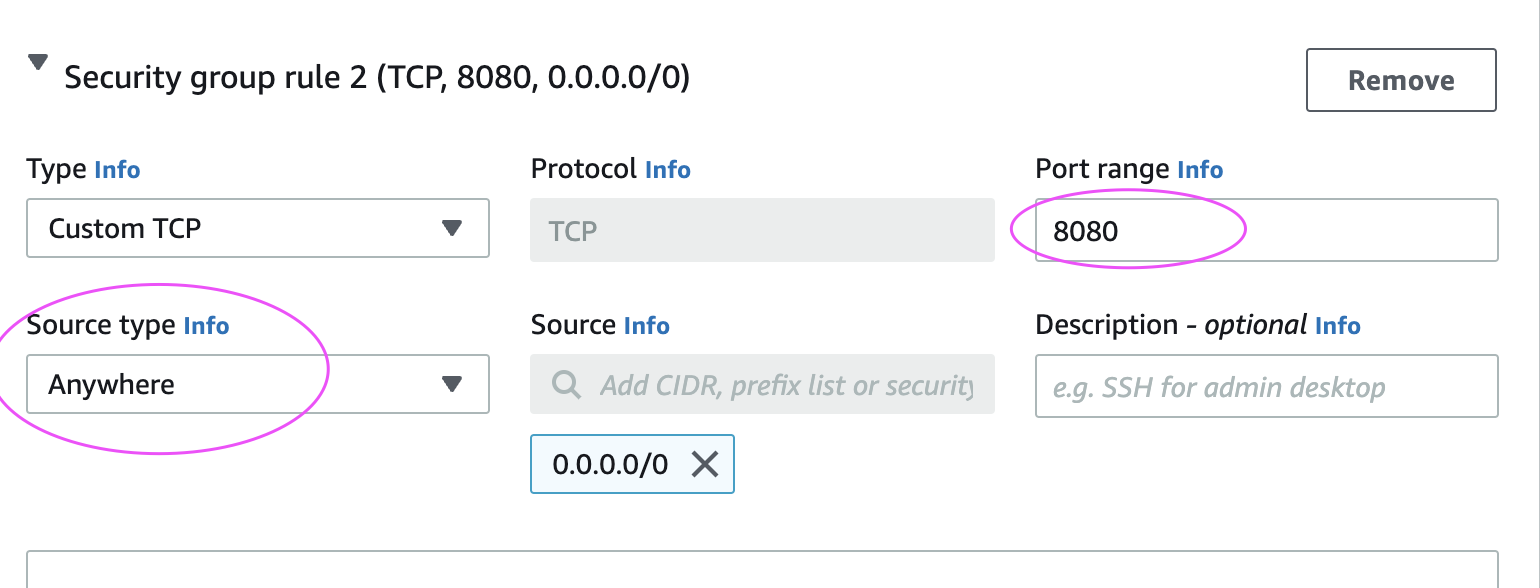
Add port range as 8080 and select AnyWhere as Source Type, that should enter 0.0.0.0/0 as Source

8. Enter 10 GB as storage 

Steps to add bootstrap script during EC2 launch


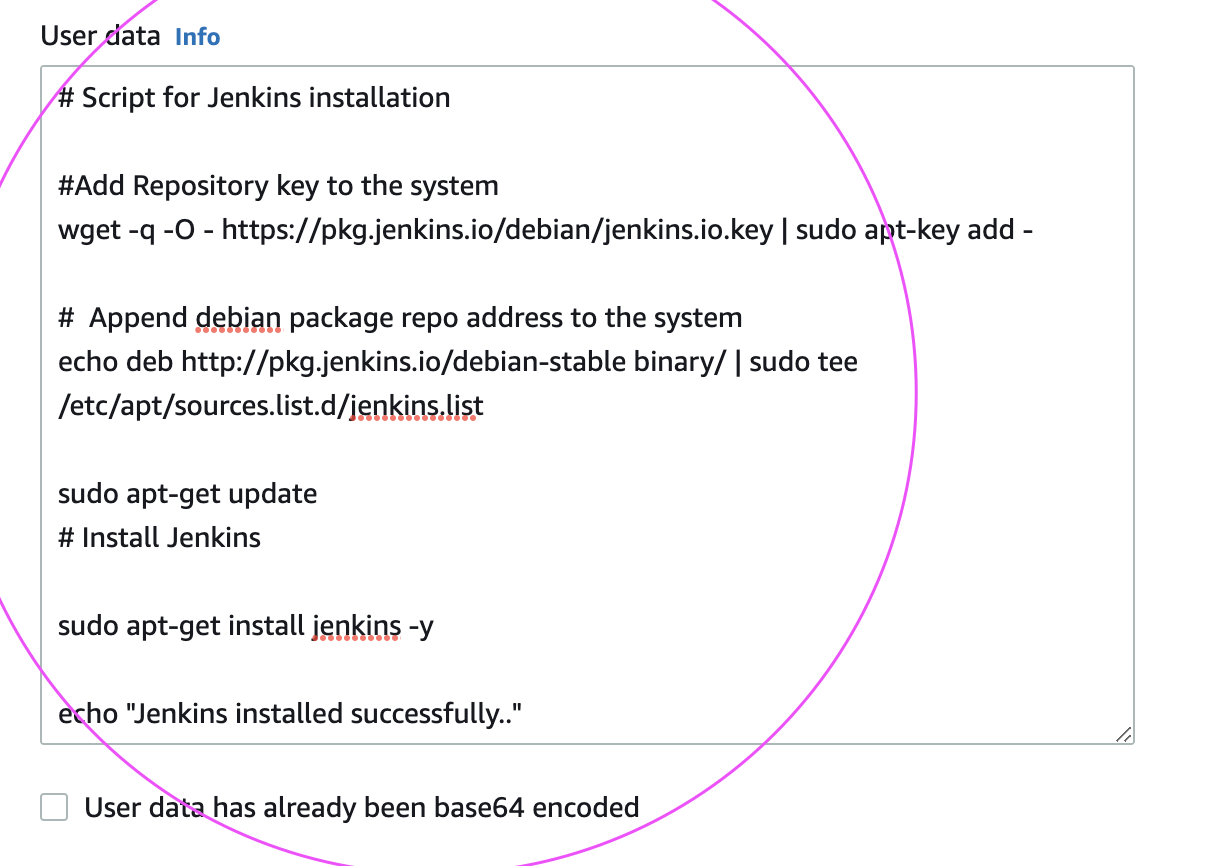
Click on Advanced Details:

go to User Data section and Copy the script from this link.

9. Click on Launch Instance.

Click on View instances

Now you should be able to view instances in AWS console. 

once EC2 is provisioned, you can login and you will be able to see Java, Maven and Jenkins installed in EC2 instance after launch.

Check the Console Output Logs in EC2 instance

Login to EC2 instance, and type the below command:

tail -f /var/log/cloud-init-output.log

This will give the output of bootstrap execution

Verify if Java got installed.

java -version
mvn --version


Go to the browser and try to access Jenkins in the browser, Jenkins should be coming up.(make sure you open port 8080 in the firewall rules)


Enter Jenkins Admin password:
Execute below command to get Jenkins admin password

sudo cat /var/lib/jenkins/secrets/initialAdminPassword

Enter the password and click on continue

Click on Suggested plug-ins and setup the admin user for Jenkins.

Watch the steps in YouTube channel:

Monday, June 29, 2020

How to create an Elastic IP Address in AWS and assign to your EC2 instance | Associate Elastic IP address to EC2 instance

If you are using an AWS free tier account, every time you stop and restart the EC2 instance the public ip/dns name changes. To avoid this you can use the Elastic IP address provided by AWS. 

Elastic IP address is static IP address or permanent address provided by AWS. 

How to create Elastic IP address:

Go to AWS console, Click on EC2, Elastic IPs.

Click on Allocate Elastic IP address


Now it should create Elastic IP address.


Click on Actions, Associate Elastic IP address and choose your instance from Instances textbox and pick up the Private ip address automatically.

That's it! Elastic IP(static) address have been assigned to your EC2 instance.

Saturday, May 16, 2020

How To Use BootStrap Scripts in AWS EC2 Instance during Launch - Running commands on your Linux instance at launch | How to Run commands on your Linux instance at launch

What is bootstrap script in aws?

if you want to execute some commands during boot up(also launch), you can execute it easily by mentioning during step 3 of EC2 launch. Bootstrap scripts run only once - when the instance is instantiated for the 1st time.

Please follow the below steps to create an EC2 instance.  We will be installing Java, Maven, Jenkins and Apache during boot up.

Steps to add bootstrap script during EC2 launch

1: Go to AWS console. click on All services, Click on Compute -->  Click on EC2


2. Click on Launch instance. Choose an Amazon machine image (AMI), click next

3. select Ubuntu Server 18.04 LTS (HVM), SSD Volume Type


click next
4. choose an instance type as t2.small, 2GB memory. click next

5. in step 3, go down, under advanced details.  Copy the script
from this link.

6. Now continue like how you provision EC2 instance.
7. once you provision, you will be able to see Java, Maven and Jenkins installed in EC2 instance after launch.

Check the Logs in EC2 instance

Login to EC2 instance, and type the below command:

tail -f /var/log/cloud-init-output.log

This will give the output of bootstrap execution

Verify if Java got installed.

java -version
mvn --version


Go to the browser and try to access Jenkins in the browser, Jenkins should be coming up.(make sure you open port 8080 in the firewall rules)

Java, Maven and Jenkins should be installed successfully.


Monday, May 6, 2019

How to connect to an EC2 instance from Windows or IMac?

Pre-requisites:

1. SSH keys(for e.g., myEc2Jenkins.pem) already downloaded in your local machine, preferably in downloads folder.
2. Your EC2 instance is up and running in AWS
3. For windows laptop, you need to use Git bash. You can install Git by downloading from this URL - https://git-scm.com/downloads

Steps to connect to EC2 instance:

1. Go to AWS console.
2. Click on EC2, click on running instances link


3. Select the checkbox of EC2 you would like to connect to.
4. Click on Action. Copy the url from SSH which looks like below:
For e.g.
ssh -i "mykey.pem" ubuntu@dns_name.compute.amazonaws.com


For windows machine(and also for iMac))

1. Open Git bash
2. type pwd
It may print your directory in git bash
3. Now type cd downloads
4. make sure you have keys in the downloads directory by typing the below command:
  dir  *.pem

The above command should list all the pem files in the downloads directory.

only for Macbook pro laptops, you need to perform additional step
chmod 400 myJenkinsEc2KKey.pem

5. Now paste the url from step # 4 above
ssh -i "mykey.pem" ubuntu@dns_name.compute.amazonaws.com
type yes

6. now you should be in AWS cloud, screen should tell you something like this:

Last login: Sun month 18 19:01:21 2018 from 64.183.186.78
ubuntu@ip-172-31-26-96:~$

Sunday, January 20, 2019

How to create EC2 instance using Puppet - How to provision EC2 instances in AWS using Puppet


Here below is the puppet code to provision an EC2 instance on AWS cloud.

create-ec2.pp
ec2_instance { 'My EC2':
    ensure              => present,
    region              => 'us-east-2',
    image_id            => 'ami-916f59f4',
    instance_type       => 't2.micro',
    security_groups     => ['mySecurityGroup'],
    subnet              => 'subnet-aff937d5',
    key_name            => 'mykeyName',
  }

ec2_securitygroup { 'mySecurityGroup':
  region      => 'us-east-2',
  ensure      => present,
  description => 'Security group for aws Ec2 instance',
ingress     => [{
    protocol => 'tcp',
    port     => 8080,
    cidr     => '0.0.0.0/0',
  },{
    protocol => 'tcp',
    port     => 80,
    cidr     => '0.0.0.0/0',
  },{
    protocol => 'tcp',
    port     => 22,
    cidr     => '0.0.0.0/0',
 }],
  tags        => {
    tag_name  => 'mySecurityGroup',
},
}

And then execute the below command to create EC2 instance.
  sudo /opt/puppetlabs/bin/puppet apply create-ec2.pp

Make sure you have access keys and secret keys downloaded from AWS.

sudo vi ~/.aws/credentials
[default]
aws_access_key_id = ?
aws_secret_access_key = ?

🚀 Live AI-Enabled DevSecOps & Cloud Engineering Bootcamp – Sep 2026

Live AI-Enabled DevSecOps & Cloud Engineering Bootcamp from Coach AK - Sep 2026 Schedule