Showing posts with label Azure DevOps. Show all posts

Wednesday, January 28, 2026

How to integrate SonarQube Cloud with Azure DevOps YAML Pipeline | SonarQube Cloud Integration with Azure DevOps | Automate Code Scan using SonarQube Cloud In Azure YAML Pipelines

Please find steps below for integrating SonarQube Cloud to perform static code analysis from Azure DevOps and automate this workflow by writing Azure devops yaml pipeline.


Pre-requisites in SonarQube Cloud:


    Click on Azure DevOps, enter your Microsoft credentials.
    Create an Organization, click on Import from a DevOps platform

    Create a Token in Azure DevOps with Read & Write Access under Code:

    Import organization details. Select free plan.


    Pre-requisites in Azure DevOps:

    • Azure DevOps Account
    • Make sure Java Project is setup in Azure Repos and default branch is either main or master.
    • Make sure you install SonarCloud plug-in/Add-on in Azure DevOps using below URL:
    How to add SonarQube Cloud plug-in in Azure DevOps?

    And look for SonarQube Cloud Add-on


    Once added SonarQube plug-in, click on proceed to Organization..


    How to integrate SonarQube Cloud with Azure DevOps:

    Create Token in SonarQube Cloud to authenticate with Azure DevOps
    You need to login to SonarQube using your admin password. admin/admin123 and click on Admin on your top side.
    Click on My Account, Security. 
    Under Tokens, Give some value for token name and choose Global analysis token, click on generate Tokens. Copy the token value generated.


    Create Service Connections in Azure DevOps 

    Login to Azure DevOps. Select your project dashboard.


    Click on Project settings --> Service connections
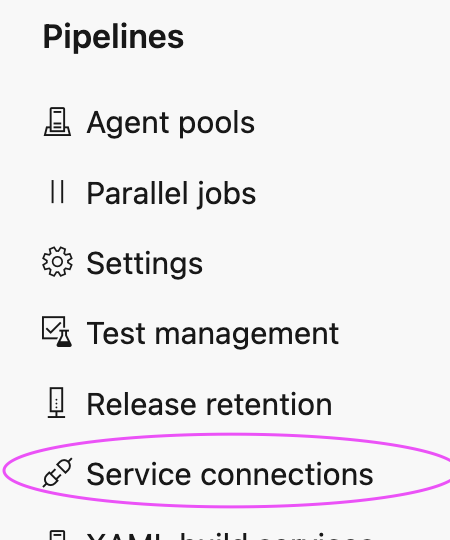

    click on New service connection

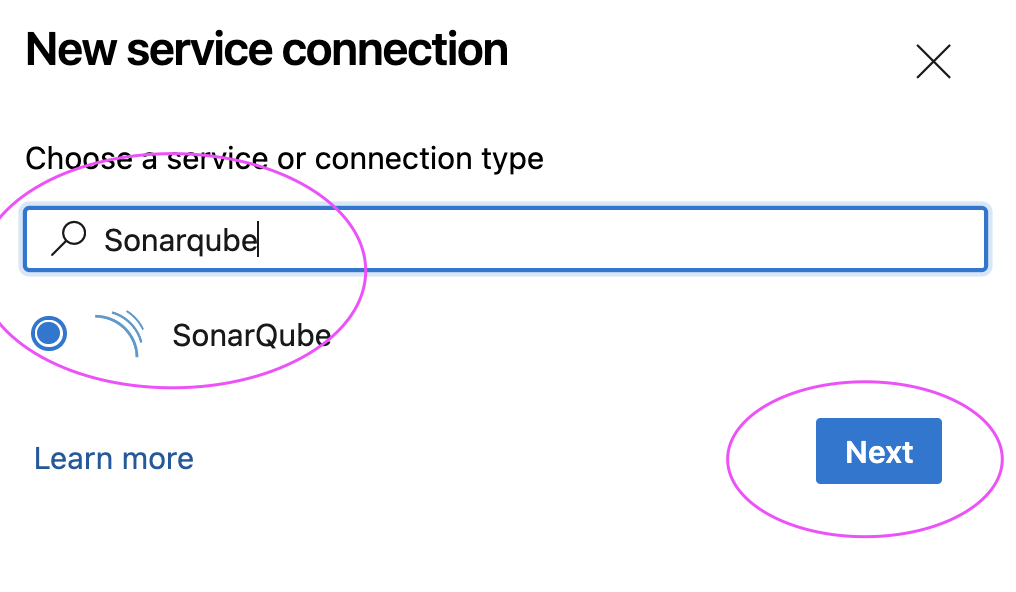
    Type SonarQube and Click Next

    Enter SonarQube server url as https://sonarcloud.io/
    and enter Token created 
    Give name for service connection and select grant access permission to all pipelines.
    Click on Save.


    Create a YAML Pipeline in Azure DevOps

    1. Login to Azure DevOps. Go to Azure Pipelines. Click on create a new pipeline, Select GitHub:

    2. Select your GitHub repo and select the Maven as YAML pipeline template

    3. Click on show assistant on right hand side, type SonarQube and select Prepare Analysis on SonarQube task and then select Service connection from the drop down and choose Integrate with Maven or Gradle option and then click on Add task


    Sample Code for entire pipeline is here below

    Azure DevOps Pipeline YAML Code:

    trigger:
    - main

    pool:
    vmImage: ubuntu-latest

    steps:
    - task: SonarCloudPrepare@4
    inputs:
    SonarQube: 'my_sonar_cloud'
    organization: 'mydevopscoachingapp'
    scannerMode: 'CLI'
    configMode: 'manual'
    cliProjectKey: 'MyDevopsCoachingApp_mySep2025WeekendRepo'
    cliProjectName: 'MyWebApp'
    - task: Maven@4
    inputs:
    mavenPomFile: 'MyWebApp/pom.xml'
    mavenOptions: '-Xmx3072m'
    javaHomeOption: 'JDKVersion'
    jdkVersionOption: '1.17'
    jdkArchitectureOption: 'x64'
    publishJUnitResults: true
    testResultsFiles: '**/surefire-reports/TEST-*.xml'
    goals: 'clean install sonar:sonar'


    Click on Save and Queue to kick start build.
    Now login to SonarCloud dashboard, click on Projects:


    Friday, January 10, 2025

    Perform Security Scan for SpringBoot Microservice Docker image using Trivy Scanner and Azure YAML Pipeline | How to Scan Spring Boot Docker Image in Azure DevOps using Trivy Scanner

    Perform vulnerability scan using Trivy scanner on Azure DevOps Pipeline


    What is Trivy?
    Trivy is an open-source security scanner tool developed by Aqua Security. It can scan:
      • container images 
      • file systems/folders 
      • Git repositories
      • Kubernetes clusters
      • misconfiguration in files such as Terraform, K8S manifest files

    Pre-requisites:

    ADO Yaml Pipeline for scanning docker image using Trivy scanner in Azure Hosted Build Agent:
    # Perform Trivy scan for Docker image and upload docker image into ACR

    trigger:
    - master

    resources:
    - repo: self

    variables:
    # Container registry service connection established during pipeline creation
    dockerRegistryServiceConnection: '723477ce-4e05-4e6e-a3c1-13bdf919a5cd'
    imageRepository: 'dockerspringbootapp'
    containerRegistry: 'myacrrepo131.azurecr.io'
    dockerfilePath: '$(Build.SourcesDirectory)/Dockerfile'
    tag: '$(Build.BuildId)'

    # Agent VM image name
    vmImageName: 'ubuntu-latest'

    stages:
    - stage: Build
    displayName: Build and push stage
    jobs:
    - job: Build
    displayName: Build
    pool:
    vmImage: $(vmImageName)
    steps:
    - task: Maven@4
    inputs:
    mavenPomFile: 'pom.xml'
    publishJUnitResults: true
    testResultsFiles: '**/surefire-reports/TEST-*.xml'
    javaHomeOption: 'JDKVersion'
    mavenVersionOption: 'Default'
    mavenAuthenticateFeed: false
    effectivePomSkip: false
    sonarQubeRunAnalysis: false
    - task: Docker@2
    displayName: Build a Docker image
    inputs:
    command: build
    repository: $(imageRepository)
    dockerfile: $(dockerfilePath)
    containerRegistry: $(dockerRegistryServiceConnection)
    tags: |
    $(tag)
    - task: Bash@3
    displayName: "Install Trivy"
    inputs:
    targetType: inline
    script: |
    curl -sfL https://raw.githubusercontent.com/aquasecurity/trivy/main/contrib/install.sh | sh
    # Run Trivy Scan
    - task: Bash@3
    displayName: "Run Trivy Scan"
    inputs:
    targetType: inline
    script: |
    ./bin/trivy image --severity HIGH,CRITICAL,MEDIUM --ignore-unfixed $(containerRegistry)/$(imageRepository):$(tag)
    - task: Docker@2
    displayName: push the image to container registry
    inputs:
    command: Push
    repository: $(imageRepository)
    dockerfile: $(dockerfilePath)
    containerRegistry: $(dockerRegistryServiceConnection)
    tags: |
    $(tag)

    Scan report can be viewed in Build output of Azure Pipelines


    Watch Steps in YouTube channel:

    How to Create a Docker Image for a Springboot App and Upload image into Azure Container Registry using Azure YAML Pipelines | Upload Spring boot Docker Image into Azure Container Registry (ACR)

    We will learn how to build Docker image for a springboot app and upload the Docker image into Azure Container Registry(ACR) using Azure YAML pipelines.


    Pre-requisites:

    1. Azure subscription
    2. Azure DevOps project dashboard in https://dev.azure.com/
    3. Dockerfile created along with the application source code

    Create Resource Group

    Make sure you are login to Azure portal first.

    az login

    Execute below command to create a resource group in Azure portal.

    az group create --name myResourceGroup --location southcentralus

    How to Create Azure Container Registry?

    Run the below command to create your own private container registry using Azure Container Registry (ACR).

    az acr create --resource-group myResourceGroup --name myacrrepo31 --sku Standard --location southcentralus

    You can login to Azure portal to see the ACR repo.

    How to create Azure Build YAML Pipeline

    1. Login into your Azure DevOps dashboard
    2. Click on Pipelines.

    3. Click on New Pipeline

    4. Click on GitHub Repo as we have code committed into GitHub


    5. Enter your repo name and branch name where you have stored your source code along with Dockerfile.
    Type docker as name and select the below repo


    6. Click on Continue. Now choose the template by typing Docker, Select below task and Apply.


    7. Choose the subscription

    Click on Continue

    Enter Microsoft credentials.
    Now choose ACR repo and enter name for the image and select the path for Dockerfile


    Click on Validate and configure.

    # Create a Jar file using Maven
    # Create a docker image and push the image to Azure Container Registry
    # https://docs.microsoft.com/azure/devops/pipelines/languages/docker
    trigger:
    - master
    resources:
    - repo: self
    variables:
    # Container registry service connection established during pipeline creation
    dockerRegistryServiceConnection: 'sdsd4'
    imageRepository: 'mypythondockerrepo'
    containerRegistry: 'myacrrep31.azurecr.io'
    dockerfilePath: '$(Build.SourcesDirectory)/Dockerfile'
    tag: '$(Build.BuildId)'
    vmImageName: 'ubuntu-latest'
    stages:
    - stage: Build
    displayName: Build and push stage
    jobs:
    - job: Build
    displayName: Build
    pool:
    vmImage: $(vmImageName)
    steps:
    - task: Maven@4 inputs: mavenPomFile: 'pom.xml' publishJUnitResults: true testResultsFiles: '**/surefire-reports/TEST-*.xml' javaHomeOption: 'JDKVersion' mavenVersionOption: 'Default' mavenAuthenticateFeed: false effectivePomSkip: false sonarQubeRunAnalysis: false - task: Docker@2 displayName: Build and push an image to container registry inputs: command: buildAndPush repository: $(imageRepository) dockerfile: $(dockerfilePath) containerRegistry: $(dockerRegistryServiceConnection) tags: | $(tag)


    Now click Save + run and run to start Building the pipeline. Now check the status of the pipeline.


    Once the build is completed, you should be able to see the Docker images under 
    Services --> Repositories


    Clean up resources in Azure Cloud:
    az group delete --resource-group MyResourceGroup

    This should clean up resources in Azure cloud..

    Watch Steps in YouTube channel:

    Thursday, January 9, 2025

    Setup AquaSec Trivy for Vulnerability scanning | How to Set Up Trivy Scanner in Azure DevOps | How to scan Docker image using Trivy Scanner | Create Azure YAML Pipeline for scanning Docker image

    How to perform vulnerability scan using Trivy scanner on Azure DevOps Pipeline?


    Pre-requisites:

    ADO Yaml Pipeline for scanning docker image using Trivy scanner:
    # Docker
    # Build and push an image to Azure Container Registry
    # https://docs.microsoft.com/azure/devops/pipelines/languages/docker
    trigger:
    - master
    resources:
    - repo: self

    variables:
    # Container registry service connection established during pipeline creation
    dockerRegistryServiceConnection: 'd676875f-d1fb-485a-8da4-88d6bfb04604'
    imageRepository: 'mypythondockerrepo'
    containerRegistry: 'myacrrep31.azurecr.io'
    dockerfilePath: '$(Build.SourcesDirectory)/Dockerfile'
    tag: '$(Build.BuildId)'

    vmImageName: 'ubuntu-latest'

    stages:
    - stage: Build
    displayName: Build and push stage
    jobs:
    - job: Build
    displayName: Build
    pool:
    vmImage: $(vmImageName)
    steps:
    # build docker image
    - task: Docker@2
    displayName: Build Docker image
    inputs:
    command: build
    repository: $(imageRepository)
    dockerfile: $(dockerfilePath)
    containerRegistry: $(dockerRegistryServiceConnection)
    tags: |
    $(tag)
    # Install Trivy Scanner on Agent
    - task: Bash@3
    displayName: "Install Trivy"
    inputs:
    targetType: inline
    script: |
    curl -sfL https://raw.githubusercontent.com/aquasecurity/trivy/main/contrib/install.sh | sh
    # Run Trivy Scan
    - task: Bash@3
    displayName: "Run Trivy Scan"
    inputs:
    targetType: inline
    script: |
    ./bin/trivy image --severity HIGH,CRITICAL,MEDIUM --ignore-unfixed $(containerRegistry)/$(imageRepository):$(tag)
    # Push docker image
    - task: Docker@2
    displayName: push Docker image to container registry
    inputs:
    command: push
    repository: $(imageRepository)
    dockerfile: $(dockerfilePath)
    containerRegistry: $(dockerRegistryServiceConnection)
    tags: |
    $(tag)

    Scan report can be viewed in Build output of Azure Pipelines


    How to Create a Docker Image for a Python App and Upload image into Azure Container Registry using Azure YAML Pipelines | Automate Docker builds using Azure YAML Pipelines | Upload Docker Image into Azure Container Registry (ACR)

    We will learn how to build Docker image and upload the Docker images into Azure Container Registry(ACR) using Azure YAML pipelines.


    Pre-requisites:

    1. Azure subscription
    2. Azure DevOps project dashboard in https://dev.azure.com/
    3. Dockerfile created along with the application source code

    Create Resource Group

    Make sure you are login to Azure portal first.

    az login

    Execute below command to create a resource group in Azure portal.

    az group create --name myResourceGroup --location southcentralus

    How to Create Azure Container Registry?

    Run the below command to create your own private container registry using Azure Container Registry (ACR).

    az acr create --resource-group myResourceGroup --name myacrrepo31 --sku Standard --location southcentralus

    You can login to Azure portal to see the ACR repo.

    How to create Azure Build YAML Pipeline

    1. Login into your Azure DevOps dashboard
    2. Click on Pipelines.

    3. Click on New Pipeline

    4. Click on GitHub Repo as we have code committed into GitHub


    5. Enter your repo name and branch name where you have stored your source code along with Dockerfile.
    Type python as name and select the below repo


    6. Click on Continue. Now choose the template by typing Docker, Select below task and Apply.


    7. Choose the subscription

    Click on Continue

    Enter Microsoft credentials.
    Now choose ACR repo and enter name for the image and select the path for Dockerfile


    Click on Validate and configure.

    # Docker
    # Build and push an image to Azure Container Registry
    # https://docs.microsoft.com/azure/devops/pipelines/languages/docker
    trigger:
    - master
    resources:
    - repo: self

    variables:
    # Container registry service connection established during pipeline creation
    dockerRegistryServiceConnection: 'sdsd4'
    imageRepository: 'mypythondockerrepo'
    containerRegistry: 'myacrrep31.azurecr.io'
    dockerfilePath: '$(Build.SourcesDirectory)/Dockerfile'
    tag: '$(Build.BuildId)'

    vmImageName: 'ubuntu-latest'

    stages:
    - stage: Build
    displayName: Build and push stage
    jobs:
    - job: Build
    displayName: Build
    pool:
    vmImage: $(vmImageName)
    steps:
    - task: Docker@2
    displayName: Build and push an image to container registry
    inputs:
    command: buildAndPush
    repository: $(imageRepository)
    dockerfile: $(dockerfilePath)
    containerRegistry: $(dockerRegistryServiceConnection)
    tags: |
    $(tag)


    Now click Save + run and run to start Building the pipeline. Now check the status of the pipeline.


    Once the build is completed, you should be able to see the Docker images under 
    Services --> Repositories


    Sunday, November 17, 2024

    How to Configure GitHub Advanced Security for Azure DevOps | How to Perform Security scan for Azure Repos using GitHub Advanced Security

    GitHub Advanced Security for Azure DevOps brings the secret scanning, dependency scanning and CodeQL code scanning solutions already available for GitHub users and natively integrates them into Azure DevOps to protect your Azure Repos and Pipelines. 


    Pre-requisites:

    How to Set up dependency scanning?

    Dependency scanning is a pipeline-based scanning tool. Results are aggregated per repository. It's recommended that you add the dependency scanning task to all the pipelines you'd like to be scanned.

    Add the task Advanced Security Dependency Scanning task (AdvancedSecurity-Dependency-Scanning@1) directly to your YAML pipeline file or select the Advanced Security Dependency Scanning task from the task assistant.

    How to Set up code scanning

    Code scanning is also a pipeline-based scanning tool where results are aggregated per repository.

    Add the tasks in the following order:

    1. Advanced Security Initialize CodeQL (AdvancedSecurity-Codeql-Init@1)
    2. Your custom build steps
    3. Advanced Security Perform CodeQL Analysis (AdvancedSecurity-Codeql-Analyze@1)
    Pipeline YAML Code for scanning Java code using GitHub Advanced Security

    Create a Pipeline:
    Login to your Azure Devops dashboard https://dev.azure.com


    Go to Pipelines, Click New, 
    select your SCM.


    Select your Repository. Use starter pipeline and copy and paste the below code:


    trigger:
    - main

    resources:
    - repo: self

    variables:
    tag: '$(Build.BuildId)'

    stages:
    - stage: Build
    displayName: Build image
    jobs:
    - job: Build
    displayName: Build
    pool:
    vmImage: ubuntu-latest
    steps:
    - task: AdvancedSecurity-Codeql-Init@1
    inputs:
    languages: 'java'
    - task: Maven@4
    inputs:
    mavenPomFile: 'pom.xml'
    goals: 'install'
    publishJUnitResults: true
    testResultsFiles: '**/surefire-reports/TEST-*.xml'
    javaHomeOption: 'JDKVersion'
    mavenVersionOption: 'Default'
    mavenAuthenticateFeed: false
    effectivePomSkip: false
    sonarQubeRunAnalysis: false
    - task: AdvancedSecurity-Dependency-Scanning@1
    - task: AdvancedSecurity-Codeql-Analyze@1

    Where to see the Scan resule in Azure DevOps?


    Master DevSecOps and Multi Cloud Computing Course by Coach AK | DevSecOps and Cloud Computing Online Classes | May 2026 Schedule

       Live Hands-On Bootcamp - May 2026 🚀 Supercharge your DevOps career with real-world skills! 🔥 What You’ll Learn 👉 Master leading DevSec...