Showing posts with label Jenkins. Show all posts

Friday, February 20, 2026

How to Integrate SonarQube Cloud with Jenkins | Jenkins SonarQube Cloud Integration | Automate Static Code Quality Analysis with SonarQube Cloud from Jenkins

Automate Static Code Quality Analysis with SonarCloud from Jenkins


Pre-requisites in SonarCloud:


Depending on your SCM tool, We will use GitHub. So please click on it.
Enter GitHub credentials to setup your account in SonarCloud. Click Authorize SonarQube Cloud.


Go to SonarCloud → My Account → Organizations → Create/Select organization

Choose “Import from GitHub” (or connect GitHub) and Install the SonarCloud GitHub App

Start analyzing a project:

Select Project and Click on Setup:


Check any one of the options to confirm what is new code:

Select with other CI tools

Select Maven, note organization key, project key and token.


Pre-requisites in Jenkins:
  • SonarQube plug-in - Make sure this plug-in is installed.
  • pipeline stage view plug-in

    After setting up SonarCloud successfully, login to Jenkins. Manage Jenkins --> Configure System --> SonarQube installation 

    Server URL should be https://sonarcloud.io/
    Enter Sonar token as secret text and select it from the drop down

     
    Jenkins Pipeline code for running scan in SonarCloud

    node {

        def mvnHome = tool 'Maven3'
        stage ("checkout")  {
            git branch: 'main', credentialsId: '', url: 'https://github.com/akannan1087/my-javawebapp-repo'
        }

       stage ('build')  {
        sh "${mvnHome}/bin/mvn clean install -f MyWebApp/pom.xml"
        }

         stage ('Code Quality scan')  {
           withSonarQubeEnv('SonarCloud') {
                sh """
                  ${mvnHome}/bin/mvn -f MyWebApp/pom.xml \
                 org.sonarsource.scanner.maven:sonar-maven-plugin:4.0.0.4121:sonar \
                  -Dsonar.organization=org_key \
                  -Dsonar.projectKey=com.dept.app:MyWebApp \
                  -Dsonar.projectName=MyWebApp
                """
            }
       }
    }

    Now login to SonarCloud under --> https://sonarcloud.io/projects


    Here is the pipeline view:

    Watch steps in YouTube Video:

    Thursday, January 30, 2025

    How to Setup AquaSec Trivy for Vulnerability scanning | How to scan Springboot Docker image using Trivy Scanner | Create Jenkins Pipeline for scanning Docker image for Springboot Microservices App

    Watch steps in YouTube channel:

    Pre-requisites:

    Jenkins Pipeline for scanning docker image using Trivy scanner:

    pipeline {
        agent any
        environment {
            registry = "acct_id.dkr.ecr.us-east-1.amazonaws.com/coachak/springboot-app"
        }

        stages {
            stage('Checkout') {
                steps {
                    git 'https://github.com/akannan1087/docker-spring-boot'
                }
            }
            
            stage ("Build JAR") {
                steps {
                    sh "mvn clean install"
                }
            }
            
            stage ("Build image") {
                steps {
                    script {
                        dockerImage = docker.build registry
                        dockerImage.tag("$BUILD_NUMBER")
                    }
                }
            }
            
        // Scanning Docker images using Trivy scanner
         stage('Trivy Security scan') {
         steps{
             script {
                sh "trivy image --severity HIGH,CRITICAL,MEDIUM acct_id.dkr.ecr.us-east-1.amazonaws.com/coachak/springboot-app:$BUILD_NUMBER"
             }
          }
         }
        // Uploading Docker images into AWS ECR
        stage('Pushing to ECR') {
         steps{  
             script {
                    sh 'aws ecr get-login-password --region us-east-1 | docker login --username AWS --password-stdin acct_id.dkr.ecr.us-east-1.amazonaws.com'
                    sh 'docker push acct_id.dkr.ecr.us-east-1.amazonaws.com/coachak/springboot-app:$BUILD_NUMBER'
             }
            }
         }
        }
    }

    Pipeline Output:


    Scan report can be viewed in Jenkins


    Thursday, October 31, 2024

    Deploy Python App into Kubernetes Cluster using kubectl Jenkins Pipeline | Containerize Python App and Deploy into EKS Cluster | Kubectl Deployment using Jenkins

    We will learn how to automate Docker builds using Jenkins and Deploy into Kubernetes Cluster in AWS Cloud. We will use kubectl command to deploy Docker images into EKS cluster. We will use Python based application. I have already created a repo with source code + Dockerfile. The repo also have Jenkinsfile for automating the following:

    - Automating builds using Jenkins
    - Automating Docker image creation
    - Automating Docker image upload into Elastic container registry
    - Automating Deployments to Kubernetes Cluster using kubectl CLI plug-in


    Pre-requisites:
    1. EKS Cluster is setup and running. Click here to learn how to create EKS cluster.
    2. Jenkins Master is up and running.
    3. Install Docker in Jenkins.
    4. Docker, Docker pipeline and Kubectl CLI plug-ins are installed in Jenkins


    5. ECR repo created to store docker images.

    The Code for this video is here:
    and make necessary changes in eks-deploy-from-ecr.yaml file after you fork into your account.

    Step #1 - Create Credentials for connecting to EKS cluster using Kubeconfig
    Go to Jenkins UI, click on Credentials -->


    Click on Global credentials
    Click on Add Credentials

    use secret file from drop down.

    execute the below command to login as jenkins user.
    sudo su - jenkins

    you should see the nodes running in EKS cluster.

    kubectl get nodes


    Create namespace to deploy containers
    kubectl create namespace python-app-ns
    kubectl get ns

    Execute the below command to get kubeconfig info, copy the entire content of the file:
    cat /var/lib/jenkins/.kube/config


    Open your text editor or notepad, copy and paste the entire content and save in a file.
    We will upload this file.

    Enter ID as K8S and choose File and upload the file and save.


    Step # 2 - Create a pipeline in Jenkins
    Create a new pipeline job.


    Step # 3 - Copy the pipeline code from below
    Make sure you change values as per your settings highlighted in yellow below:

    pipeline {
        agent any

        environment {
            registry = "account_id.dkr.ecr.us-east-1.amazonaws.com/coachak/my-docker-repo"
        }
        stages {
            stage('checkout') {
                steps {
                    checkout([$class: 'GitSCM', branches: [[name: '*/master']], extensions: [], userRemoteConfigs: [[url: 'https://github.com/akannan1087/myPythonDockerRepo']]])
                }
            }
            
            stage ("build image") 
            {
                steps {
                    script {
                        dockerImage = docker.build registry
                          dockerImage.tag("$BUILD_NUMBER")
                        }
                    }
            }
            
            stage ("upload ECR") {
                steps {
                    script {
                        sh "aws ecr get-login-password --region us-east-2 | docker login --username AWS --password-stdin account_id.dkr.ecr.us-east-2.amazonaws.com"
                    sh 'docker push account_id.dkr.ecr.us-east-1.amazonaws.com/coachak/my-docker-repo:$BUILD_NUMBER'
                    }
                }
            }
            
        // Avoid latest tag image and pass build ID dynamically from Jenkins pipeline
           stage('K8S Deploy') {
            steps{   
                script {
                    withKubeConfig([credentialsId: 'K8S', serverUrl: '']) {
                    echo "Current build number is: ${env.BUILD_ID}"
                   // Replace the placeholders in the deployment.yaml file 
                    sh """ 
                    sed -i 's/\${BUILD_NUMBER}/${env.BUILD_ID}/g' k8s-deployment.yaml
                    """ 
                    sh ('kubectl apply -f  k8s-deployment.yaml -n springboot-app-ns')
                    }
                }
            }
           }
        }    
    }

    Step # 4 - Build the pipeline


    Step # 5 - Verify deployments to EKS

    kubectl get pods


    kubectl get deployments
    kubectl get services


    Steps # 6 - Access Python App in K8S cluster
    Once deployment is successful, go to browser and enter above load balancer URL 

    You should see page like below:


    Sunday, October 27, 2024

    Deploy Springboot Microservices App into Amazon EKS Cluster using Jenkins Pipeline and Kubectl CLI Plug-in | Containerize Springboot App and Deploy into EKS Cluster using Jenkins Pipeline

     We will learn how to create CICD pipeline to deploy springboot microservices using Jenkins pipeline into EKS Cluster with help of Kubernetes CLI plug-in.

    We will use Springboot Microservices based Java application. I have already created a repo with source code + Dockerfile. The repo also have Jenkinsfile for automating the following:

    - Automating builds using Jenkins Pipeline
    - Automating Docker image creation and tagging
    - Automating Docker image upload into AWS ECR
    - Automating Docker Containers Deployments to Kubernetes Cluster


    Watch steps in YouTube channel:


    Same Code for this video is here:

    Pre-requisites:
    1. Amazon EKS Cluster is setup and running. Click here to learn how to create Amazon EKS cluster.
    5. Docker, Docker pipeline and Kubernetes CLI plug-ins are installed in Jenkins

    Install Kubernetes CLI plug-in:

    6. Install kubectl on your instance

    Step # 1 - Create Maven3 variable under Global tool configuration in Jenkins
    Make sure you create Maven3 variable under Global tool configuration. 


    Step #2 - Create Credentials for connecting to Kubernetes Cluster using kubeconfig
    Click on Add Credentials, use Kubernetes configuration from drop down.

    use secret file from drop down.


    execute the below command to login as jenkins user.
    sudo su - jenkins

    you should see the nodes running in EKS cluster.

    kubectl get nodes


    Create namespace to deploy the containers
    kubectl create namespace springboot-app-ns
    kubectl get ns


    Execute the below command to get kubeconfig info, copy the entire content of the file:
    cat /var/lib/jenkins/.kube/config


    Open your text editor or notepad, copy and paste the entire content and save in a file.
    We will upload this file.

    Enter ID as K8S and choose File and upload the file and save.


    Enter ID as K8S and choose enter directly and paste the above file content and save.

    Step # 3 - Create a pipeline in Jenkins
    Create a new pipeline job.


    Step # 4 - Copy the pipeline code from below
    Make sure you change red highlighted values below as per your settings:
    Your docker user id should be updated.
    your registry credentials ID from Jenkins from step # 1 should be copied

    pipeline {
       tools {
            maven 'Maven3'
        }
        agent any
        environment {
            registry = "account_id.dkr.ecr.us-east-1.amazonaws.com/coachak/my-docker-repo"
        }
       
        stages {
            stage('Cloning Git') {
                steps {
                    checkout([$class: 'GitSCM', branches: [[name: '*/main']], doGenerateSubmoduleConfigurations: false, extensions: [], submoduleCfg: [], userRemoteConfigs: [[credentialsId: '', url: 'https://github.com/akannan1087/springboot-app']]])     
                }
            }
          stage ('Build') {
              steps {
                sh 'mvn clean install'           
                }
          }
        // Building Docker images
        stage('Building image') {
          steps{
            script {
              dockerImage = docker.build registry 
              dockerImage.tag("$BUILD_NUMBER")
            }
          }
        }
       
        // Uploading Docker images into AWS ECR
        stage('Pushing to ECR') {
         steps{  
             script {
                    sh 'aws ecr get-login-password --region us-east-1 | docker login --username AWS --password-stdin account_id.dkr.ecr.us-east-1.amazonaws.com'
                    sh 'docker push account_id.dkr.ecr.us-east-1.amazonaws.com/coachak/my-docker-repo:$BUILD_NUMBER'
             }
            }
          }
        // Avoid latest tag image and pass build ID dynamically from Jenkins pipeline
           stage('K8S Deploy') {
            steps{   
                script {
                    withKubeConfig([credentialsId: 'K8S', serverUrl: '']) {
                    echo "Current build number is: ${env.BUILD_ID}"
                   // Replace the placeholders in the deployment.yaml file 
                    sh """ 
                    sed -i 's/\${BUILD_NUMBER}/${env.BUILD_ID}/g' eks-deploy-k8s.yaml
                    """ 
                    sh ('kubectl apply -f  eks-deploy-k8s.yaml -n springboot-app-ns')
                    }
                }
            }
           }
        }
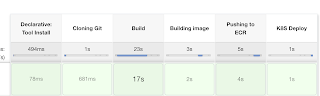
    }

    Step # 5 - Build the pipeline
    Once you create the pipeline and changes values per your configuration, click on Build now:


    Step # 6 - Verify deployments to K8S

    kubectl get deployments -n springboot-app-ns


    kubectl get pods -n springboot-app-ns


    kubectl get services -n springboot-app-ns


    If you see any errors after deploying the pods, you can check the pod logs.
    kubectl logs <pod_name> -n spring-app-ns

    Steps # 7 - Access SpringBoot App in K8S cluster
    Once build is successful, go to browser and enter master or worker node public ip address along with port number mentioned above
    http://loadbalancer_ip_address

    You should see page like below:


    Note:

    and make changes in eks-deploy-k8s.yaml to pull Docker image from your AWS ECR repo.

    Master DevSecOps and Multi Cloud Computing Course by Coach AK | DevSecOps and Cloud Computing Online Classes | May 2026 Schedule

       Live Hands-On Bootcamp - May 2026 🚀 Supercharge your DevOps career with real-world skills! 🔥 What You’ll Learn 👉 Master leading DevSec...