Showing posts with label Docker Registry. Show all posts

Friday, January 10, 2025

How to Create a Docker Image for a Springboot App and Upload image into Azure Container Registry using Azure YAML Pipelines | Upload Spring boot Docker Image into Azure Container Registry (ACR)

We will learn how to build Docker image for a springboot app and upload the Docker image into Azure Container Registry(ACR) using Azure YAML pipelines.


Pre-requisites:

1. Azure subscription
2. Azure DevOps project dashboard in https://dev.azure.com/
3. Dockerfile created along with the application source code

Create Resource Group

Make sure you are login to Azure portal first.

az login

Execute below command to create a resource group in Azure portal.

az group create --name myResourceGroup --location southcentralus

How to Create Azure Container Registry?

Run the below command to create your own private container registry using Azure Container Registry (ACR).

az acr create --resource-group myResourceGroup --name myacrrepo31 --sku Standard --location southcentralus

You can login to Azure portal to see the ACR repo.

How to create Azure Build YAML Pipeline

1. Login into your Azure DevOps dashboard
2. Click on Pipelines.

3. Click on New Pipeline

4. Click on GitHub Repo as we have code committed into GitHub


5. Enter your repo name and branch name where you have stored your source code along with Dockerfile.
Type docker as name and select the below repo


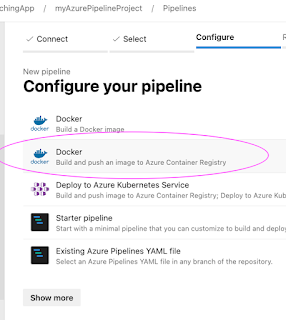
6. Click on Continue. Now choose the template by typing Docker, Select below task and Apply.


7. Choose the subscription

Click on Continue

Enter Microsoft credentials.
Now choose ACR repo and enter name for the image and select the path for Dockerfile


Click on Validate and configure.

# Create a Jar file using Maven
# Create a docker image and push the image to Azure Container Registry
# https://docs.microsoft.com/azure/devops/pipelines/languages/docker
trigger:
- master
resources:
- repo: self
variables:
# Container registry service connection established during pipeline creation
dockerRegistryServiceConnection: 'sdsd4'
imageRepository: 'mypythondockerrepo'
containerRegistry: 'myacrrep31.azurecr.io'
dockerfilePath: '$(Build.SourcesDirectory)/Dockerfile'
tag: '$(Build.BuildId)'
vmImageName: 'ubuntu-latest'
stages:
- stage: Build
displayName: Build and push stage
jobs:
- job: Build
displayName: Build
pool:
vmImage: $(vmImageName)
steps:
- task: Maven@4 inputs: mavenPomFile: 'pom.xml' publishJUnitResults: true testResultsFiles: '**/surefire-reports/TEST-*.xml' javaHomeOption: 'JDKVersion' mavenVersionOption: 'Default' mavenAuthenticateFeed: false effectivePomSkip: false sonarQubeRunAnalysis: false - task: Docker@2 displayName: Build and push an image to container registry inputs: command: buildAndPush repository: $(imageRepository) dockerfile: $(dockerfilePath) containerRegistry: $(dockerRegistryServiceConnection) tags: | $(tag)


Now click Save + run and run to start Building the pipeline. Now check the status of the pipeline.


Once the build is completed, you should be able to see the Docker images under 
Services --> Repositories


Clean up resources in Azure Cloud:
az group delete --resource-group MyResourceGroup

This should clean up resources in Azure cloud..

Watch Steps in YouTube channel:

Thursday, January 9, 2025

How to Create a Docker Image for a Python App and Upload image into Azure Container Registry using Azure YAML Pipelines | Automate Docker builds using Azure YAML Pipelines | Upload Docker Image into Azure Container Registry (ACR)

We will learn how to build Docker image and upload the Docker images into Azure Container Registry(ACR) using Azure YAML pipelines.


Pre-requisites:

1. Azure subscription
2. Azure DevOps project dashboard in https://dev.azure.com/
3. Dockerfile created along with the application source code

Create Resource Group

Make sure you are login to Azure portal first.

az login

Execute below command to create a resource group in Azure portal.

az group create --name myResourceGroup --location southcentralus

How to Create Azure Container Registry?

Run the below command to create your own private container registry using Azure Container Registry (ACR).

az acr create --resource-group myResourceGroup --name myacrrepo31 --sku Standard --location southcentralus

You can login to Azure portal to see the ACR repo.

How to create Azure Build YAML Pipeline

1. Login into your Azure DevOps dashboard
2. Click on Pipelines.

3. Click on New Pipeline

4. Click on GitHub Repo as we have code committed into GitHub


5. Enter your repo name and branch name where you have stored your source code along with Dockerfile.
Type python as name and select the below repo


6. Click on Continue. Now choose the template by typing Docker, Select below task and Apply.


7. Choose the subscription

Click on Continue

Enter Microsoft credentials.
Now choose ACR repo and enter name for the image and select the path for Dockerfile


Click on Validate and configure.

# Docker
# Build and push an image to Azure Container Registry
# https://docs.microsoft.com/azure/devops/pipelines/languages/docker
trigger:
- master
resources:
- repo: self

variables:
# Container registry service connection established during pipeline creation
dockerRegistryServiceConnection: 'sdsd4'
imageRepository: 'mypythondockerrepo'
containerRegistry: 'myacrrep31.azurecr.io'
dockerfilePath: '$(Build.SourcesDirectory)/Dockerfile'
tag: '$(Build.BuildId)'

vmImageName: 'ubuntu-latest'

stages:
- stage: Build
displayName: Build and push stage
jobs:
- job: Build
displayName: Build
pool:
vmImage: $(vmImageName)
steps:
- task: Docker@2
displayName: Build and push an image to container registry
inputs:
command: buildAndPush
repository: $(imageRepository)
dockerfile: $(dockerfilePath)
containerRegistry: $(dockerRegistryServiceConnection)
tags: |
$(tag)


Now click Save + run and run to start Building the pipeline. Now check the status of the pipeline.


Once the build is completed, you should be able to see the Docker images under 
Services --> Repositories


Saturday, April 6, 2024

GitHub Actions CICD Pipeline to Create Docker Image and Push Docker Image into Amazon ECR | Integrate GitHub Actions with AWS ECR

Please find steps for integrating AWS ECR with GitHub Actions:


Pre-requisites:

What are we going to do in this lab?
1. Create a Repository in AWS ECR
2. Create AWS secret keys + access keys
3. Create secrets in GitHub Actions
4. Create workflow yaml
5. Add steps/tasks in the yaml file
6. Run the workflow yaml
7. Check if docker image is been stored in AWS ECR

How to Create a repo in ECR ?

Go to AWS console and search for ECR

Click on Create Repository


Enter name for your repo - all lower case and Click create repository


Once repo is created, choose the repo and click on view push commands. Note down the account ID


Add Access keys and Secret keys as Secrets in GitHub Actions

Go to your GitHub Repo --> Settings --> 

Click on Secrets and Variables under Security in left nav 
Click new Repository Secret


Create secrets in GitHub for AWS_REGION,  REPO_NAME,  AWS_SECRET_ACCESS_KEY and AWS_ACCESS_KEY_ID

Create GitHub Actions CICD workflow yaml:

Go to GitHub repo where your Java project is, create a new file:

.github/workflows/cicd.yml


The below file have four steps(tasks) 
    - Checkout
    - Install Java on runner
    - Build springboot Jar file using Maven
    - Build docker image and tag it
    - Upload docker image into AWS ECR

Copy the content from below:
name: cicd-workflow to create docker image and upload into AWS ECR
on:
  push:
    branches: [ "master" ]
jobs:
  job1:
    runs-on: ubuntu-latest
    steps:
    - uses: actions/checkout@v3
    - name: Set up JDK 17
      uses: actions/setup-java@v2
      with:
        distribution: 'adopt'
        java-version: '17'
    - name: Build with Maven
      run: mvn clean install
    - name: Setup AWS ECR Details
      uses: aws-actions/configure-aws-credentials@v1
      with:
        aws-access-key-id: ${{ secrets.AWS_ACCESS_KEY_ID }}
        aws-secret-access-key: ${{ secrets.AWS_SECRET_ACCESS_KEY }}
        aws-region: ${{secrets.AWS_REGION}}
    - name: Login to Amazon ECR
      id: login-pf-aws-ecr
      uses: aws-actions/amazon-ecr-login@v1
    - name: Build and push Docker image
      env:
        ECR_REGISTRY: ${{ steps.login-pf-aws-ecr.outputs.registry }}
        ECR_REPOSITORY: ${{secrets.REPO_NAME}}
        IMAGE_TAG: ${{ github.sha }}
      run: |
        docker build -t $ECR_REGISTRY/$ECR_REPOSITORY:$IMAGE_TAG .
        docker push $ECR_REGISTRY/$ECR_REPOSITORY:$IMAGE_TAG

Commit the file.

As soon as you commit, build will run immediately in GitHub Actions. 
Now you can see the output of build in Actions tab.


Please login to AWS console --> ECR and verify if image have been uploaded successfully.


Watch Steps in YouTube channel:

Thursday, September 30, 2021

How to upload Docker Images into Azure Container Registry using Azure Pipelines | Automate Docker builds using Azure Pipelines | Upload Docker Image into Azure Container Registry (ACR)

We will learn how to build Docker image and upload the Docker images into Azure Container Registry(ACR) using Azure Build pipelines.

Pre-requisites:

1. ACR is setup in Azure cloud. (see below for the steps)
2. Already created Azure DevOps dashboard in 
3. Dockerfile created along with the application source code

How to Create Azure Container Registry?

First Create Resource Group

Make sure you are login to Azure portal first.

az login

Execute below command to create a resource group in Azure portal.

az group create --name myResourceGroup --location southcentralus

Run the below command to create your own private container registry using Azure Container Registry (ACR).

az acr create --resource-group myResourceGroup --name myacrrepo31 --sku Standard --location southcentralus

You can login to Azure portal to see the ACR repo.


How to create a Azure Build Pipeline

1. Login into your Azure DevOps dashboard
2. Click on Pipelines.

3. Click on New Pipeline

4. Click on use the classic editor
Enter your repo name and branch name where you have stored your source code along with Dockerfile

Click on Continue. Now choose the template by typing Docker, Select Docker container and Apply.
 

Now pipeline is created with two tasks already. Now we need to customize it.

Let's modify Build an image task. Choose azure subscription and enter Microsoft credentials and select ACR repo from the drop down


Select Push an image task and select Azure subscription and select ACR repo from the drop down


Add a task for Copying YAML file, enter the Kubernetes deployment YAML file

Add Publish artifact task


Now click Save + Queue and run to start Building the pipeline


Once the build is completed, you should be able to see the Docker images under 
Services --> Repositories


Please watch the above steps in YouTube Channel:

Thursday, May 6, 2021

Automate Docker builds using Jenkins Pipelines | Dockerize Python App | Upload Images into Azure Container Registry (ACR)

We will learn how to automate Docker builds using Jenkins. We will use Python based application. I have already created a repo with source code + Dockerfile. We will see how to create Docker image and upload into Azure Container Registry (ACR) successfully.


- Automating builds
- Automating Docker image builds
- Automating Docker image upload into ACR
- Automating Docker container provisioning
 
Watch here for YouTube channel:
 

Pre-requisites:
1. Jenkins is up and running
2. Docker installed on Jenkins instance. Click here to for integrating Docker and Jenkins
3. Docker and Docker pipelines plug-in are installed 
4. Create credentials entry for Jenkins for connecting to ACR
5. Repo created in ACR, Click here to know how to do that.
6. port 8096 is opened up in firewall rules. 

Step # 1 - Create a pipeline in Jenkins
Name as myACRDockerPipelineJob


Step # 2 - Copy the pipeline code from below
Make sure you change red highlighted values below:
Your a should be updated and repo should be updated.
pipeline {
     agent any
     
        environment {
        //once you create ACR in Azure cloud, use that here
        registryName = "myakacrregistry/my-python-app"
        //- update your credentials ID after creating credentials for connecting to ACR
        registryCredential = 'ACR'
        dockerImage = ''
        registryUrl = 'myakacrregistry.azurecr.io'
    }
    
    stages {

        stage ('checkout') {
            steps {
            checkout([$class: 'GitSCM', branches: [[name: '*/master']], doGenerateSubmoduleConfigurations: false, extensions: [], submoduleCfg: [], userRemoteConfigs: [[url: 'https://github.com/akannan1087/myPythonDockerRepo']]])
            }
        }
       
        stage ('Build Docker image') {
            steps {
                
                script {
                    dockerImage = docker.build registryName
                }
            }
        }
       
    // Uploading Docker images into ACR
    stage('Upload Image to ACR') {
     steps{   
         script {
            docker.withRegistry( "http://${registryUrl}", registryCredential ) {
            dockerImage.push()
            }
        }
      }
    }

       // Stopping Docker containers for cleaner Docker run
     stage('stop previous containers') {
         steps {
            sh 'docker ps -f name=mypythonContainer -q | xargs --no-run-if-empty docker container stop'
            sh 'docker container ls -a -fname=mypythonContainer -q | xargs -r docker container rm'
         }
       }
      
    stage('Docker Run') {
     steps{
         script {
                sh 'docker run -d -p 8096:5000 --rm --name mypythonContainer ${registryUrl}/${registryName}'
            }
      }
    }
    }
 }
 
Step # 3 - Click on Build - Build the pipeline
Once you create the pipeline and changed values per your ACR details, click on Build now.

Steps # 4 - Check Docker images are uploaded into ACR
Login to ACR in Azure cloud, click on your registry name, Services, Repositories, now you should see the image got uploaded.


Steps # 5 - Access PythonApp in the browser which is running inside docker container
Once build is successful, go to browser and enter http://public_dns_name:8096
You should see page like below:


Master DevSecOps and Multi Cloud Computing Course by Coach AK | DevSecOps and Cloud Computing Online Classes | May 2026 Schedule

   Live Hands-On Bootcamp - May 2026 🚀 Supercharge your DevOps career with real-world skills! 🔥 What You’ll Learn 👉 Master leading DevSec...