Friday, January 10, 2025

How to Create a Docker Image for a Springboot App and Upload image into Azure Container Registry using Azure YAML Pipelines | Upload Spring boot Docker Image into Azure Container Registry (ACR)

We will learn how to build Docker image for a springboot app and upload the Docker image into Azure Container Registry(ACR) using Azure YAML pipelines.


Pre-requisites:

1. Azure subscription
2. Azure DevOps project dashboard in https://dev.azure.com/
3. Dockerfile created along with the application source code

Create Resource Group

Make sure you are login to Azure portal first.

az login

Execute below command to create a resource group in Azure portal.

az group create --name myResourceGroup --location southcentralus

How to Create Azure Container Registry?

Run the below command to create your own private container registry using Azure Container Registry (ACR).

az acr create --resource-group myResourceGroup --name myacrrepo31 --sku Standard --location southcentralus

You can login to Azure portal to see the ACR repo.

How to create Azure Build YAML Pipeline

1. Login into your Azure DevOps dashboard
2. Click on Pipelines.

3. Click on New Pipeline

4. Click on GitHub Repo as we have code committed into GitHub


5. Enter your repo name and branch name where you have stored your source code along with Dockerfile.
Type docker as name and select the below repo


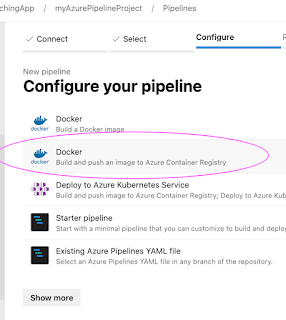
6. Click on Continue. Now choose the template by typing Docker, Select below task and Apply.


7. Choose the subscription

Click on Continue

Enter Microsoft credentials.
Now choose ACR repo and enter name for the image and select the path for Dockerfile


Click on Validate and configure.

# Create a Jar file using Maven
# Create a docker image and push the image to Azure Container Registry
# https://docs.microsoft.com/azure/devops/pipelines/languages/docker
trigger:
- master
resources:
- repo: self
variables:
# Container registry service connection established during pipeline creation
dockerRegistryServiceConnection: 'sdsd4'
imageRepository: 'mypythondockerrepo'
containerRegistry: 'myacrrep31.azurecr.io'
dockerfilePath: '$(Build.SourcesDirectory)/Dockerfile'
tag: '$(Build.BuildId)'
vmImageName: 'ubuntu-latest'
stages:
- stage: Build
displayName: Build and push stage
jobs:
- job: Build
displayName: Build
pool:
vmImage: $(vmImageName)
steps:
- task: Maven@4 inputs: mavenPomFile: 'pom.xml' publishJUnitResults: true testResultsFiles: '**/surefire-reports/TEST-*.xml' javaHomeOption: 'JDKVersion' mavenVersionOption: 'Default' mavenAuthenticateFeed: false effectivePomSkip: false sonarQubeRunAnalysis: false - task: Docker@2 displayName: Build and push an image to container registry inputs: command: buildAndPush repository: $(imageRepository) dockerfile: $(dockerfilePath) containerRegistry: $(dockerRegistryServiceConnection) tags: | $(tag)


Now click Save + run and run to start Building the pipeline. Now check the status of the pipeline.


Once the build is completed, you should be able to see the Docker images under 
Services --> Repositories


Clean up resources in Azure Cloud:
az group delete --resource-group MyResourceGroup

This should clean up resources in Azure cloud..

Watch Steps in YouTube channel:

Thursday, January 9, 2025

Setup AquaSec Trivy for Vulnerability scanning | How to Set Up Trivy Scanner in Azure DevOps | How to scan Docker image using Trivy Scanner | Create Azure YAML Pipeline for scanning Docker image

How to perform vulnerability scan using Trivy scanner on Azure DevOps Pipeline?


Pre-requisites:

ADO Yaml Pipeline for scanning docker image using Trivy scanner:
# Docker
# Build and push an image to Azure Container Registry
# https://docs.microsoft.com/azure/devops/pipelines/languages/docker
trigger:
- master
resources:
- repo: self

variables:
# Container registry service connection established during pipeline creation
dockerRegistryServiceConnection: 'd676875f-d1fb-485a-8da4-88d6bfb04604'
imageRepository: 'mypythondockerrepo'
containerRegistry: 'myacrrep31.azurecr.io'
dockerfilePath: '$(Build.SourcesDirectory)/Dockerfile'
tag: '$(Build.BuildId)'

vmImageName: 'ubuntu-latest'

stages:
- stage: Build
displayName: Build and push stage
jobs:
- job: Build
displayName: Build
pool:
vmImage: $(vmImageName)
steps:
# build docker image
- task: Docker@2
displayName: Build Docker image
inputs:
command: build
repository: $(imageRepository)
dockerfile: $(dockerfilePath)
containerRegistry: $(dockerRegistryServiceConnection)
tags: |
$(tag)
# Install Trivy Scanner on Agent
- task: Bash@3
displayName: "Install Trivy"
inputs:
targetType: inline
script: |
curl -sfL https://raw.githubusercontent.com/aquasecurity/trivy/main/contrib/install.sh | sh
# Run Trivy Scan
- task: Bash@3
displayName: "Run Trivy Scan"
inputs:
targetType: inline
script: |
./bin/trivy image --severity HIGH,CRITICAL,MEDIUM --ignore-unfixed $(containerRegistry)/$(imageRepository):$(tag)
# Push docker image
- task: Docker@2
displayName: push Docker image to container registry
inputs:
command: push
repository: $(imageRepository)
dockerfile: $(dockerfilePath)
containerRegistry: $(dockerRegistryServiceConnection)
tags: |
$(tag)

Scan report can be viewed in Build output of Azure Pipelines


How to Create a Docker Image for a Python App and Upload image into Azure Container Registry using Azure YAML Pipelines | Automate Docker builds using Azure YAML Pipelines | Upload Docker Image into Azure Container Registry (ACR)

We will learn how to build Docker image and upload the Docker images into Azure Container Registry(ACR) using Azure YAML pipelines.


Pre-requisites:

1. Azure subscription
2. Azure DevOps project dashboard in https://dev.azure.com/
3. Dockerfile created along with the application source code

Create Resource Group

Make sure you are login to Azure portal first.

az login

Execute below command to create a resource group in Azure portal.

az group create --name myResourceGroup --location southcentralus

How to Create Azure Container Registry?

Run the below command to create your own private container registry using Azure Container Registry (ACR).

az acr create --resource-group myResourceGroup --name myacrrepo31 --sku Standard --location southcentralus

You can login to Azure portal to see the ACR repo.

How to create Azure Build YAML Pipeline

1. Login into your Azure DevOps dashboard
2. Click on Pipelines.

3. Click on New Pipeline

4. Click on GitHub Repo as we have code committed into GitHub


5. Enter your repo name and branch name where you have stored your source code along with Dockerfile.
Type python as name and select the below repo


6. Click on Continue. Now choose the template by typing Docker, Select below task and Apply.


7. Choose the subscription

Click on Continue

Enter Microsoft credentials.
Now choose ACR repo and enter name for the image and select the path for Dockerfile


Click on Validate and configure.

# Docker
# Build and push an image to Azure Container Registry
# https://docs.microsoft.com/azure/devops/pipelines/languages/docker
trigger:
- master
resources:
- repo: self

variables:
# Container registry service connection established during pipeline creation
dockerRegistryServiceConnection: 'sdsd4'
imageRepository: 'mypythondockerrepo'
containerRegistry: 'myacrrep31.azurecr.io'
dockerfilePath: '$(Build.SourcesDirectory)/Dockerfile'
tag: '$(Build.BuildId)'

vmImageName: 'ubuntu-latest'

stages:
- stage: Build
displayName: Build and push stage
jobs:
- job: Build
displayName: Build
pool:
vmImage: $(vmImageName)
steps:
- task: Docker@2
displayName: Build and push an image to container registry
inputs:
command: buildAndPush
repository: $(imageRepository)
dockerfile: $(dockerfilePath)
containerRegistry: $(dockerRegistryServiceConnection)
tags: |
$(tag)


Now click Save + run and run to start Building the pipeline. Now check the status of the pipeline.


Once the build is completed, you should be able to see the Docker images under 
Services --> Repositories


Tuesday, January 7, 2025

How to Implement CICD using Azure DevOps | CICD process flow diagram using Azure DevOps | How to migrate applications into Azure Cloud using Azure DevOps Pipelines


Azure DevOps is a set of development tools and services offered by Microsoft to facilitate the entire software development lifecycle (SDLC). Azure DevOps is designed to support collaboration among development and operations teams, automate various aspects of the software development process, and enable continuous integration and continuous delivery (CI/CD) pipelines.

What is Continuous Integration?

Continuous integration is a DevOps software development practice where developers regularly merge their code changes into a central repository, after which automated builds and tests are run.

The key goals of continuous integration are to find and address bugs quicker, improve software quality, and reduce the time it takes to validate and release new software updates.

Azure DevOps is widely used for implementing CICD. Azure DevOps can integrate with other tools using Add-ons.

How does Continuous Integration Work?

Developers frequently commit to a shared repository using a version control system such as Git. Prior to each commit, developers may choose to run local unit tests on their code as an extra verification layer before integrating. A continuous integration service automatically builds and runs unit tests on the new code changes to immediately surface any errors.

Benefits of Continuous Integration
  • Improve Developers productivity 
  • Find bugs early in the software development stage
  • Deliver products into market place sooner
  • Improve the feedback loop
What is Continuous Delivery?

Continuous delivery is a software development practice where code changes are automatically prepared for a release to production. Continuous delivery is the next extension of continuous integration. The delivery phase is responsible for packaging an artifact together to be delivered to end-users. This phase runs automated building tools to generate this artifact.

Benefits of Continuous Delivery
  • Automate the Software Release Process
  • Improve Developer Productivity
  • Find bugs early in the software development stage
  • Deliver updates faster

Friday, January 3, 2025

Complete DevSecOps Learning Roadmap for 2026 to become a DevSecOps Engineer | Top DevSecOps Skills for 2026 | Skills required to become a DevSecOps engineer | DevSecOps Learning RoadMap for 2026

 Complete DevSecOps Roadmap


We all know how DevOps is trending right now. And we know where it is going. Let's get to know what skills will make you a successful a DevOps engineer.

Top DevOps skills

1. Linux knowledge and scripting - basic troubleshooting and scripting and looking at the logs

2. Experience in Git, GitHub, GitLab, Bitbucket, Azure Repos or any source code management tools.

3. Experience in CI tools such as Jenkins, GitHub Actions, GitLab CICD, Azure DevOps

4. Experience in Code quality tool/security scanning tools - Sonarqube, AquaSec Trivy, Checkov

5. Experience in Infrastructure automation tools such as Terraform, AWS cloud formation

6. Experience in Configuration Management tools such as Ansible, Puppet or Chef

7. Experience in scripting languages such as YAML, groovy, Ruby, Python and Shell

8. Experience in containers such as Docker, Kubernetes and Helm

9. Experience in Monitoring tools such as Prometheus, Grafana

10. Ability to troubleshoot in case builds, deployments failure.

11. Any cloud knowledge and experience - AWS, Azure and Google cloud

Soft skills employers are looking:

These days employers are not only looking for strong technical skills but also looking "soft skills" which are essentials to become successful in IT. If you think if you are lagging on any of these skills, no worries. All these skills can be developed and improved over period of time by practicing.

1. Open minded

2. Willingness to learn new skills

3. Communication

4. Approachable

5. "Get it done" attitude

6. Being adaptable. 

DevSecOps Bootcamp Feb 2025 Schedule | DevOps & AWS Azure Cloud Coaching by Coach AK | DevSecOps and Cloud Computing Online Classes

🚀 Join the Ultimate DevSecOps Bootcamp – February 2025! 🔥

Are you ready to supercharge your career in DevSecOps? Whether you're a beginner or an experienced professional, this hands-on bootcamp will take you from zero to expert with real-world training on the latest DevSecOps tools and practices!

✅ Master Top DevSecOps Tools: Git, GitHub, Bitbucket, Jenkins, SonarQube, Slack, Trivy, Nexus, Terraform, Ansible, Docker, Kubernetes, Helm, Prometheus and more!
✅ Cloud Platforms – AWS & Azure
✅ Live Interactive Sessions – Get personalized guidance from industry experts!
✅ Weekend & Weekday Batches – Flexible schedules to fit your lifestyle!
✅ Weekday Evenings Batch Available! – Perfect for working professionals!
✅ Real-World Projects – Build experience that recruiters love!
✅ 100% Hands-On Training – No boring theory, just practical DevSecOps!
✅ Career Support & Guidance – Resume building, interview prep, and networking!

📅 Weekend Batch Starts: February 22, 2025
🕒 Batch Timings:

  • Weekend Batch: Saturdays (11:35 AM - 01:30 PM CST) & Sundays (12:45 PM - 2:30 PM CST)

📅 Weekday Evening Batch Starts: February 24, 2025
🕒 Batch Timings:

  • Weekday Evenings Batch: Mondays & Wednesdays (6:00 PM - 8:00 PM CST)

📍 Online – Learn from Anywhere!

🎯 Spots are Limited! Secure your seat now and take the first step toward becoming a DevSecOps pro!

📞 Contact Coach AK Now:
📱 +1 (469) 733-5248 (WhatsApp Available)
📧 devops.coaching@gmail.com

💥 Act Fast! Early Bird Discounts Available! 🚀

👉 Register Today by calling  or texting Coach AK on +1 (469) 733-5248

How to Configure GitLab Runner with Docker Executor on Ubuntu 24.04 EC2

How to Configure GitLab Runner with Docker Executor on Ubuntu 24.04 EC2 In this tutorial, we will configure a self-hosted GitLab R...