Saturday, April 15, 2023

How to create Ubuntu 22.0.4 Virtual Machine (VM) in Azure? | Create Ubuntu 22.0.4 VM in Azure | How to connect to Azure VM from your local machine

How to Create Ubuntu 22.0.4 Virtual Machines(VM) in Azure portal? Creating Virtual Machine is easy and straight forward in Azure Cloud. Let us see how to do that in Azure portal. 

Pre-requisites:

  • Azure account subscription, click here if you dont have one.
Watch Steps in YouTube channel:


Steps to create Ubuntu 22.0.4 Virtual Machine in Azure
 
1. Login to Azure portal, go to https://portal.azure.com/
2. Click on Virtual Machines.

3. Click on Add virtual machine.


4. Now enter the details as below or give values per your subscription and requirements. Select Ubuntu 22.0.4 VM


5. choose authentication type as SSH public key, enter azureuser as user name, enter key pair name.
This step will eventually create SSH keys and allow you to download in your machine.


6. Under Networking


Go with Allow selected ports - SSH port 22
And also select Delete public IP and NIC when VM is deleted option


7. Click on Review, it may take a few mins to finish the validations. If all good, it should pass the validations. Click on Create.

8.  Now download the SSH keys and save it locally.
 

9. Once created, Click on virtual machines.

10. You should see the new VM is running like below:


How to connect to Azure VM from your local machine?


11. Now select that instance, click on connect


Then choose SSH 


12. Copy the value as it shows below in your local terminal(iTerm for Apple laptop) or Git bash for Windows laptop.

13. Make sure your SSH keys is not accessible by others, by executing the below command:

chmod 400 myUbuntuVM_key.pem
14. Now ssh into VM from your local machine using the key

ssh -i myUbuntuVM_key.pem azureuser@your_ip_address


Now it should show you that you are connected to Azure.


Wednesday, April 12, 2023

Shell Script for creating AKS Cluster with Monitoring enabled | Setup monitoring on AKS Cluster and Log Analytics Workspace

#!/bin/sh

# This is the shell script for creating AKS cluster with Monitoring enabled. you can Monitor AKS cluster using Grafana or Azure Monitor


#Create Resource Group

AKS_RESOURCE_GROUP=aks-rg

AKS_REGION=centralus

# Set Cluster Name

AKS_CLUSTER=aks-cluster


echo $AKS_RESOURCE_GROUP, $AKS_REGION, $AKS_CLUSTER


# Create Resource Group

az group create --location ${AKS_REGION} --name ${AKS_RESOURCE_GROUP}


# Create Log Analytics Workspace and store the ID in a variable

AKS_MONITORING_LOG_ANALYTICS_WORKSPACE_ID=$(az monitor log-analytics workspace create --resource-group ${AKS_RESOURCE_GROUP} \

--workspace-name aks-workspace \

--query id \

        -o tsv)

echo $AKS_MONITORING_LOG_ANALYTICS_WORKSPACE_ID


# Create AKS cluster with monitoring enabled and pass on log analytics workspace ID

az aks create --resource-group ${AKS_RESOURCE_GROUP} \

              --name ${AKS_CLUSTER} \

              --node-count 2 \

              --enable-addons monitoring \

              --workspace-resource-id ${AKS_MONITORING_LOG_ANALYTICS_WORKSPACE_ID} \


# Configure Kube Credentials

az aks get-credentials --name ${AKS_CLUSTER}  --resource-group ${AKS_RESOURCE_GROUP}


# Create service principal with monitoring reader role

az ad sp create-for-rbac --role="Log Analytics Reader" --scopes="$(az group show --name ${AKS_RESOURCE_GROUP} --query id --output tsv)"

Tuesday, April 4, 2023

SonarQube Server Cannot be reached Error Resolution | SonarQube Troubleshooting | Fix for max virtual memory areas vm.max_map_count [65530] is too low

 How to Resolve SonarQube Server cannot be reached Error?

Pre-requisites:

refer this page for pre-requisites to install SonarQube


Resolution:

Make sure EC2 instance or server where you are installing SonarQube has enough virtual memory and open file limits for  Linux OS.

How to change default value for vm.max_map_count temporarily
sudo sysctl vm.max_map_count=262144
sudo sysctl fs.file-max=65536
The above command will load the max_map_count values and open file limits till the next system restart.

How to update vm.max_map_count directly in sysctl.conf permanently
Login to instance where you will be installing SonarQube, perform the below command to configure virtual memory permanently for SonarQube to function:
sudo vi /etc/sysctl.conf

Add the following lines to the bottom of that file:

vm.max_map_count=262144
fs.file-max=65536

To make sure changes are getting into effect:
sudo sysctl -p

Make sure SonarQube is up and running by checking the logs
sudo docker-compose logs --follow


Once you see the message, that's it. SonarQube have been configured successfully. press control C and enter.

Watch Steps in YouTube channel:

SonarQube Server Cannot be reached Error Resolution | SonarQube Troubleshooting

How to Resolve SonarQube Server cannot be reached Error?

Pre-requisites:

Sonarqube was configured manually by downloading zip file. This instructions will not address for SonarQube that was configured by Docker compose.

Let's see how we can resolve the error:

Solution # 1
Your sonar.properties may not be setup correctly. It could be due to three different reasons: 1. verify below sonar.properties sudo vi /opt/sonarqube/conf/sonar.properties uncomment the below lines by removing # and add values highlighted yellow sonar.jdbc.username=sonar sonar.jdbc.password=password Next, uncomment the below line, removing # sonar.jdbc.url=jdbc:postgresql://localhost/sonarqube
Solution # 2

Make sure you have setup Postgres SQL correctly.
2. Switch to sql shell by entering psql Execute the below lines (one by one) ALTER USER sonar WITH ENCRYPTED password 'password'; CREATE DATABASE sonarqube OWNER sonar; GRANT ALL PRIVILEGES ON DATABASE sonarqube to sonar; \q type exit tom come out of postgresSQL.
Solution #3
3. Make sure you have setup sonarqube as a service properly. Execute the below command: sudo vi /etc/systemd/system/sonar.service # copy the below green highlighted commands in the above file [Unit] Description=SonarQube service After=syslog.target network.target [Service] Type=forking ExecStart=/opt/sonarqube/bin/linux-x86-64/sonar.sh start ExecStop=/opt/sonarqube/bin/linux-x86-64/sonar.sh stop User=root Group=root Restart=always [Install] WantedBy=multi-user.target


Friday, March 31, 2023

Provision Ubuntu 24.0.4 EC2 Instance | How to create EC2 instance in AWS console | Launch Ubuntu 24.0.4 instance in AWS

How to create new EC2 instance in AWS console using new UI experience?

What is EC2 instance? 

It is virtual server provided by AWS. We will be using this EC2 to setup both Jenkins and Tomcat. Please follow the below steps to create an EC2 instance.

Watch in YouTube for a demo:

Steps:
1: Login to AWS console by clicking this link -->  https://aws.amazon.com/console/
click on All services, Click on Compute -->  Click on EC2


2. Click on Launch instance


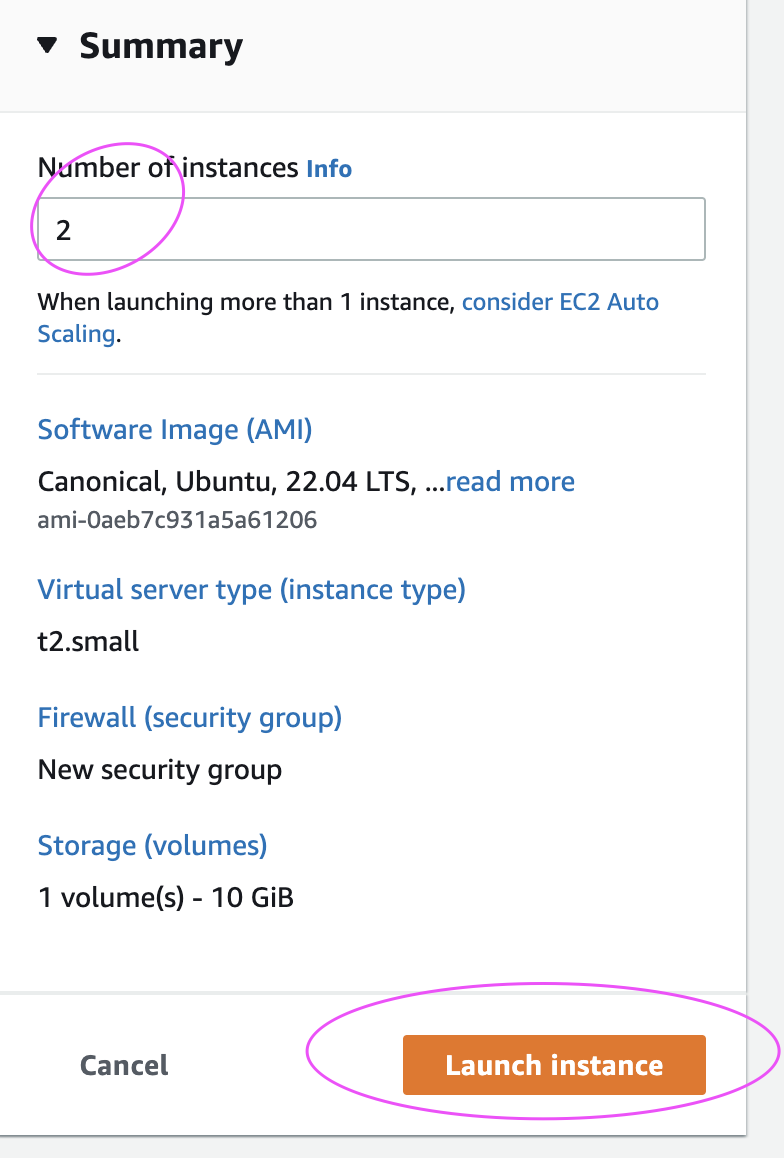
3. Enter Name as EC2 and enter 2 as number of instances (one for Jenkins and another for Tomcat)


4. Select Ubuntu

 and choose Ubuntu server 24.0.4 as AMI


5. Enter t2.small as instance type
6. Click on Create new Key Pair


7. Choose the existing key pair if you have one, otherwise create new one, give some name as myJenkinsKey. Make sure you download the key in your local machine. Please do NOT give space or any character while naming the key.


8. Under Network settings, Click Edit


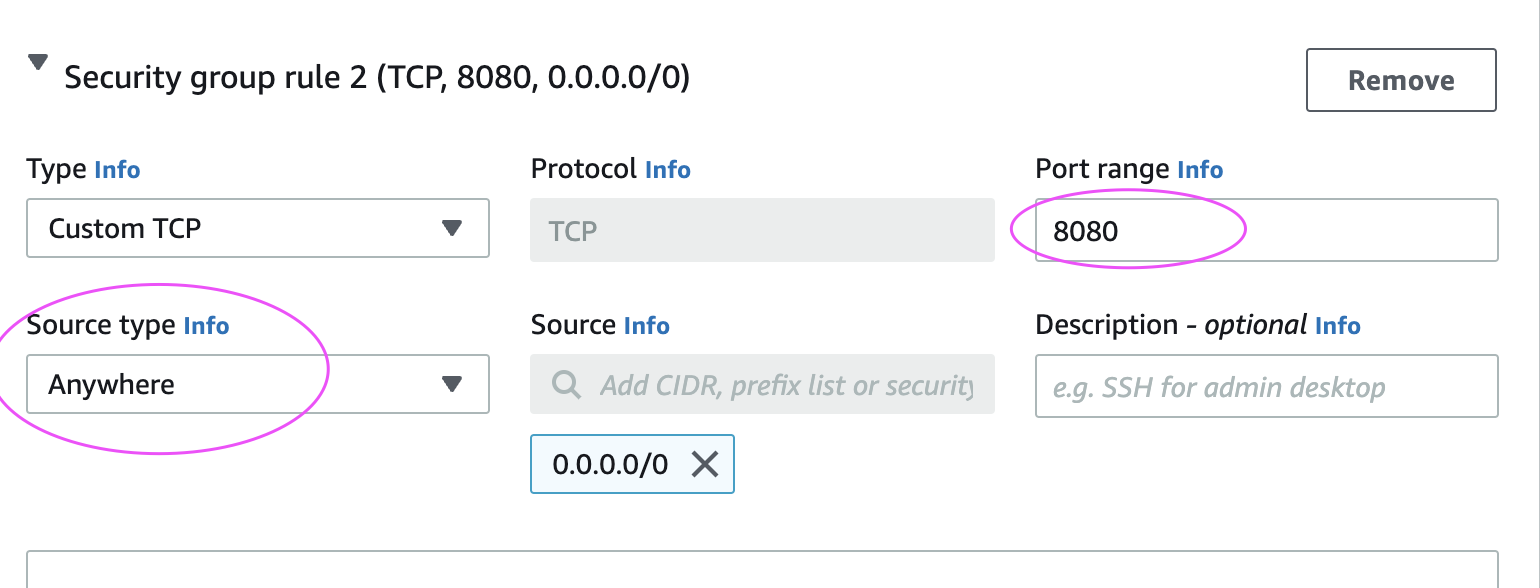
Add port range as 8080 and select AnyWhere as Source Type, that should enter 0.0.0.0/0 as Source

9. Configure Storage
Enter 15 GB as root volume 


And then make sure in Summary, values appear as below:


10. Click on Launch Instance.

Click on View instances

Now you should be able to view instances in AWS console. Now you can re-name as Jenkins-EC2 and Tomcat-EC2


Connect to EC2 instance from local machine:
Please click the below link to understand the steps for connecting to EC2 instance from your local machine - windows or Apple laptop.

http://www.cidevops.com/2018/02/how-to-connect-to-ec2-instance-from.html

Thursday, March 30, 2023

Install Jenkins on Ubuntu 22.0.4 | Setup Jenkins on AWS EC2 Ubuntu instance | How to setup Jenkins in Ubuntu EC2 instance?

Jenkins is an open source, continuous integration/continuous delivery and deployment (CI/CD) automation software DevOps tool written in the Java programming language. It is used to implement CI/CD workflows, called pipelines. 


Please follow the steps to install Java, Jenkins, Maven on Ubuntu 22.0.4 instance. Jenkins, Maven are Java based applications, so we need to install Java first. 

Pre-requisites:
  • EC2 instance is up and running
  • port 8080 is open in firewall rule
  • connect to EC2 instance using Git bash or item or any SSH terminal
Steps to install Jenkins:

Change Host Name to Jenkins
sudo hostnamectl set-hostname Jenkins

Perform update first
sudo apt update

Install Java 11
sudo apt install default-jdk -y

 
Once install java, enter the below command

Verify Java Version
java -version

Maven Installation
Maven is a popular build tool used for building Java applications. Please click here to learn more about Maven. You can install Maven by executing below command:

sudo apt install maven -y

you can type mvn --version
you should see the below output.


Now lets start Jenkins installation

Jenkins Setup

Add Repository key to the system
curl -fsSL https://pkg.jenkins.io/debian/jenkins.io-2023.key | sudo tee \
  /usr/share/keyrings/jenkins-keyring.asc > /dev/null

Append debian package repo address to the system
echo deb [signed-by=/usr/share/keyrings/jenkins-keyring.asc] \
  https://pkg.jenkins.io/debian binary/ | sudo tee \
  /etc/apt/sources.list.d/jenkins.list > /dev/null


Update Ubuntu package
sudo apt update
Install Jenkins
sudo apt install jenkins -y


The above screenshot should confirm that Jenkins is successfully installed.

Access Jenkins in web browser

Now Go to AWS console. Click on EC2, click on running instances link. Select the checkbox of EC2 you are installing Java and Jenkins. Click on Action. Copy the value from step 4 that says --> Connect to your instance using its Public DNS:

Now go to browser. enter public dns name or public IP address with port no 8080.

Unlock Jenkins
You may get screen, enter the below command in Git bash( Ubuntu console)
Get the initial password from the below file
sudo cat /var/lib/jenkins/secrets/initialAdminPassword


Copy the password and paste in the browser.
Then click on install suggested plug-ins. 
Also create user name and password.
enter everything as admin. at least user name as admin password as admin
Click on Save and Finish. Click on start using Jenkins. Now you should see a screen like below:


That's it. You have setup Jenkins successfully. Please watch the steps in our YouTube channel:

How to Configure GitLab Runner with Docker Executor on Ubuntu 24.04 EC2

How to Configure GitLab Runner with Docker Executor on Ubuntu 24.04 EC2 In this tutorial, we will configure a self-hosted GitLab R...