Thursday, June 22, 2023

DevOps Bootcamp by Coach AK on AWS cloud and Azure Cloud | DevOps and Cloud Computing Online Classes | Jan/Feb 2024 Schedule

The DevOps requirements in the IT market space is expected to grow by 35% by 2024. Getting a DevOps education now is a great investment into your future, which will pay off very fast!

You are in the right place to kick start your career in DevOps. DevOps is one of the top and hot IT skills right now. Currently almost all the employers are struggling to get right resources in their teams who can do the DevOps and automation work. You could be that person by attending this coaching program.


DevOps Coaching schedule Jan/Feb 2024 (Holidays discount are available, contact Coach AK)
Date Time Type When?
Jan 30th 6:00 to 8:00 PM CST Weekdays Tuesdays/Thursdays    
Feb 3rd 11:35 AM CST to 1:35 PM CST on Saturdays
02:00 PM CST to 04:00 PM CST on Sundays    
Weekends Sat/Sundays


DevOps Coaching Highlights:
- Comprehensive hands on knowledge on Git, Jenkins, Maven, SonarQube, Nexus, Terraform, Ansible, Docker, Kubernetes, Prometheus, Docker registry, Helm on AWS and Azure cloud platforms.

- Coach is having about 23+ yrs of professional IT experience, 9+ Yrs in DevOps/Cloud computing/Automation.

- Many students already got placed in reputed companies from this coaching program successfully.

- Working as a Sr.DevOps Coach/Architect in a one of the top IT services companies in USA.

- Unique program...less theory, more hands on lab exercises
 
- Resume preparation will be done with candidates personally.

- One-to-one interview coaching

- Coaching is purely hands on with 101% job relevant.

- 100% Job assistance

- Coached about 1700+ students successfully for past five years and many of my students got placed with many large enterprises in DFW, Charlotte, Houston, Austin, Chicago, Florida, Seattle, Bay area, Ohio, NJ and NY areas.

To join DevOps Coaching classes, please contact Coach AK below:
Contact no # +1(469)733-5248
WhatsApp # +1 (469)733-5248
Email id: devops.coaching@gmail.com
Contact: Coach AK

Monday, June 12, 2023

How to Deploy Springboot Microservices App into AKS cluster using Jenkins Pipeline and Helm | Deploy Microservices into AKS cluster using Helm Charts and Jenkins Pipeline

We are going to learn how to Automate build and deploy of Springboot Microservices App into Azure Kubernetes Cluster(AKS) using Helm and Jenkins pipeline.


Sample springboot App Code:

I have created a sample Springboot App setup in GitHub. Click here to access code base in GitHub. 

Jenkins pipeline will:

- Automate maven build(jar) using Jenkins
- Automate Docker image creation
- Automate Docker image upload into Azure container registry
- Automate Springboot docker container Deployments to Azure Kubernetes Cluster using Helm charts


Pre-requisites:
2.  Install Docker in Jenkins and Jenkins have proper permission to perform Docker builds
3. Install Azure CLI on your Jenkins machine. (We will be creating AKS cluster from Jenkins machine running in Azure Cloud)
4. Helm installed on Jenkins instance
5. Install Kubectl on Jenkins instance
6. AKS cluster needs to be up running. You can create AKS cluster, ACR Repo using shell script provided in my website.
7. Make sure to Install Docker, Docker pipeline 


8. ACR is also setup in Azure cloud. 
10. Dockerfile created along with the application source code for springboot App.

The Code for this video is here:

Implementation steps:

  1. Create a resource group, AKS cluster and Azure container registry 
  2. Provide pull access for AKS to pull image from ACR 
  3. Create a namespace for helm deployment
  4. Create a helm chart for spring boot app
  5. Create a Jenkins pipeline with below stages:
    • checkout
    • Build Jar
    • Build docker image
    • Upload image to ACR
    • Deploy to AKS using helm
  6. Run the pipeline to deploy springboot app into AKS
  7. Verify deployments in the namespace in AKS
  8. Access the app in the browser
Create AKS cluster from Jenkins Virtual machine
Login to Jenkins virtual machine. switch as jenkins user
sudo su - jenkins

Authenticate to Azure Cloud by typing:
az login


Now to the browser, type https://microsoft.com/devicelogin
enter the code as received from previous step:

Enter your microsoft credentials, click continue per below screen:

You will be shown below screen:

 
Create a shell script based on the script provided here

vi create-aks.sh
copy and paste entire script provided in this link.

Execute shell script to create the following in Azure clid:
  • Resource group
  • AKS cluster
  • ACR repo
  • provide pull access to AKS for pulling docker image from ACR
  • namespace in AKS cluster for deploying our springboot app
sh create-aks.sh
This will take 2 to 5 mins to create the resources in Azure cloud.

Make sure cluster is up and running with worker nodes
kubectl get nodes


Create Helm chart using helm command
Go to your root of repo where you have source code for your springboot application. Create helm chart by executing below command:

helm create mychart
tree mychart
Execute the above command to see the files created.


Add Docker image details to download from ECR before deploying to EKS cluster
open mychart/values.yaml. change per below values:

image:
repository: myacrrepo531.azurecr.io/myacrrepo531
tag: ""


Enter service type as LoadBalancer
And also
open mychart/templates/deployment.yaml and change containerPort to 8080


Save the files, commit and push into repo.
Step # 1 - Create Maven3 variable under Global tool configuration in Jenkins
Make sure you create Maven3 variable under Global tool configuration. 


Step #2 - Create Credentials to connect to ACR from Jenkins

Go to Azure Portal console, go to container registry
Settings--> Access keys
Get the username and password 
Go to Jenkins-> Manage Jenkins. Create credentials.


Enter ID as ACR and enter some text for description and Save.


Step # 3 - Create a pipeline in Jenkins
Create a new pipeline job.

Step # 4 - Copy the pipeline code from below
Make sure you change values as per your settings highlighted in yellow below:

pipeline {
  tools {
        maven 'Maven3'
    }
    agent any
        environment {
        //once you create ACR in Azure cloud, use that here
        registryName = "myacrrepo531"
        //- update your credentials ID after creating credentials for connecting to ACR
        registryCredential = 'ACR'
        dockerImage = ''
        registryUrl = 'myacrrepo531.azurecr.io'
    }
    
    stages {
        stage('checkout') {
            steps {
                checkout([$class: 'GitSCM', branches: [[name: '*/master']], extensions: [], userRemoteConfigs: [[url: 'check_out_from_your_repo_after_forking_my_repo']]])
            }
        }
        
        stage ('Build Jar') {
        steps {
            sh 'mvn clean install'           
        }
     }
     
    stage ('Build Docker image') {
        steps {
                script {
                    dockerImage = docker.build registryName
                }
            }
        }
        
    // Uploading Docker images into ACR
        stage('Upload Image to ACR') {
         steps{   
             script {
                docker.withRegistry( "http://${registryUrl}", registryCredential ) {
                dockerImage.push("$BUILD_NUMBER")
                }
            }
          }
        }
        
        stage ('Helm Deploy') {
          steps {
            script {
                sh "helm upgrade first --install mychart --namespace helm-deployment --set image.tag=$BUILD_NUMBER"
                }
            }
        }
    }
}

Step # 5 - Build the pipeline

Step # 6 - Verify deployments in AKS
Execute the below command to list the helm deployments:
helm ls -n helm-deployment


kubectl get pods -n helm-deployment

kubectl get services -n helm-deployment

Steps # 7 - Access Springboot App Deployed in AKS cluster
Once deployment is successful, go to browser and enter above load balancer URL mentioned above

You should see page like below:

Clean up the Cluster:

To avoid charges from Azure, you should clean up unneeded resources, use az group delete command to remove the resource group, and all related resources in that group. 

az group delete --name resource-group-name --yes --no-wait

Watch steps in YouTube Channel:

Friday, June 9, 2023

Install Jenkins on Ubuntu 24.0.4 in Azure VM | Setup Jenkins on Azure Linux instance | How to setup Jenkins in Ubuntu Virtual Machine running in Azure Cloud?

Jenkins is an open source continuous integration/continuous delivery and deployment (CI/CD) automation software DevOps tool written in the Java programming language. It is used to implement CI/CD workflows, called pipelines.


Please follow the steps to install Java, Jenkins, Maven on Ubuntu 24.0.4 instance. Jenkins, Maven are Java based applications, so we need to install Java first. 

Pre-requisites:

Change Host Name to Jenkins
sudo hostnamectl set-hostname Jenkins

Perform update first
sudo apt update

Install Java 11
sudo apt install default-jdk -y

 
Once install java, enter the below command

Verify Java Version
java -version

Maven Installation
Maven is a popular build tool used for building Java applications. Please click here to learn more about Maven. You can install Maven by executing below command:

sudo apt install maven -y

you can type mvn --version
you should see the below output.


Now lets start Jenkins installation

Jenkins Setup

Add Repository key to the system
sudo wget -O /etc/apt/keyrings/jenkins-keyring.asc https://pkg.jenkins.io/debian-stable/jenkins.io-2026.key


Append debian package repo address to the system
echo "deb [signed-by=/etc/apt/keyrings/jenkins-keyring.asc]" \
  https://pkg.jenkins.io/debian-stable binary/ | sudo tee \
  /etc/apt/sources.list.d/jenkins.list > /dev/null


Update Ubuntu package
sudo apt update
Install Jenkins
sudo apt install jenkins -y


The above screenshot should confirm that Jenkins is successfully installed.

Access Jenkins in web browser

Now Go to Azure Portal console. Click on Jenkins VM, Copy the public IP address.
 

Now go to browser. enter public IP address with port no 8080.

Unlock Jenkins
You may get screen, enter the below command in Git bash( Ubuntu console)
Get the initial password from the below file
sudo cat /var/lib/jenkins/secrets/initialAdminPassword


Copy the password and paste in the browser.
Then click on install suggested plug-ins. 
Also create user name and password.
enter everything as admin. at least user name as admin password as admin
Click on Save and Finish. Click on start using Jenkins. Now you should see a screen like below:


That's it. You have setup Jenkins successfully. 

Please watch the steps in our YouTube channel:    

Install kubectl on Ubuntu Instance | How to install kubectl in Ubuntu | Install and Set Up kubectl on Linux

Kubernetes uses a command line utility called kubectl for communicating with the cluster API server. It is tool for controlling Kubernetes clusters. 

The Kubernetes command-line tool, kubectl, allows you to run commands against Kubernetes clusters. You can use kubectl to deploy applications, inspect and manage cluster resources, and view logs. 

kubectl looks for a file named config in the $HOME directory.

How to install Kubectl in Ubuntu instance

Install kubectl binary with curl on Linux
curl -LO "https://dl.k8s.io/release/$(curl -L -s https://dl.k8s.io/release/stable.txt)/bin/linux/amd64/kubectl"

Install kubectl
sudo install -o root -g root -m 0755 kubectl /usr/local/bin/kubectl

Verify if kubectl got installed
kubectl version --short --client


Install Azure CLI in Ubuntu 22.0.4 | How to setup Azure CLI in Ubuntu 22.0.4 | How to Install Azure CLI in Ubuntu

The Azure command-line interface (Azure CLI) is a set of commands used to create and manage Azure resources. The Azure CLI is available across Azure services and is designed to get you working quickly with Azure, with an emphasis on automation. Azure CLI is Microsoft's cross-platform command-line experience for managing Azure resources.

Azure CLI can be installed by following below steps:

Run the update first
sudo apt update

Install with one command

curl -sL https://aka.ms/InstallAzureCLIDeb | sudo bash

Check the version of Azure CLI
az version

Run the Azure CLI with the az command. To sign in, use the az login command.

az login

Install Jenkins in Azure VM using Docker | How to Install Jenkins in Azure VM using Docker Compose on Ubuntu 22.0.4 | Install Jenkins using Docker-Compose

Jenkins is an open source continuous integration/continuous delivery and deployment (CI/CD) automation software DevOps tool written in the Java programming language. It is used to implement CI/CD workflows, called pipelines.

How to setup Jenkins using Docker Compose?

Jenkins is continuous integration server. It is open source and Java based tool. Jenkins can be setup using Docker Compose with less manual steps.


What is Docker Compose?
Compose is a tool for defining and running multi-container Docker applications. With Compose, you use a YAML file to configure your application’s services. Then, with a single command, you create and start all the services from your configuration. Since Docker Compose lets you configure related containers in a single YAML file, you get the same Infrastructure-as-Code abilities as Kubernetes. But they come in a simpler system that’s more suited to smaller applications that don’t need Kubernetes’ resiliency and scaling.
 
The purpose of docker-compose is to function as docker cli but to issue multiple commands much more quickly. To make use of docker-compose, you need to encode the commands you were running before into a docker-compose.yml file
 
Run docker-compose up and Compose starts and runs your entire app.

Pre-requisites:

Change Host Name to Jenkins
sudo hostnamectl set-hostname Jenkins

Perform system update
sudo apt update

Install Docker-Compose
sudo apt install docker-compose -y

Create docker-compose.yml
this yml has all configuration for installing Jenkins.
sudo vi docker-compose.yml 

(Copy the below code high-lighted in yellow color)
version: '3'
services:
  jenkins:
    image: jenkins/jenkins:lts
    restart: always
    privileged: true
    user: root
    ports:
      - 8080:8080
      - 50000:50000
    container_name: jenkins
    volumes:
      - /home/ubuntu/jenkins_compose/jenkins_configuration:/var/jenkins_home
      - /var/run/docker.sock:/var/run/docker.sock

Save the file by entering :wq!

Execute Docker compose command:
sudo docker-compose up -d 


Make sure Jenkins is up and running by checking the logs
sudo docker-compose logs --follow


Once you see the message, that's it. Jenkins is been installed successfully. press control C and enter.
Now access Jenkins UI by going to browser and enter public dns name with port 8080
Now to go to browser --> http://your_jenkins_publicdns_name:8080/

You can get the Admin password from above command as well.

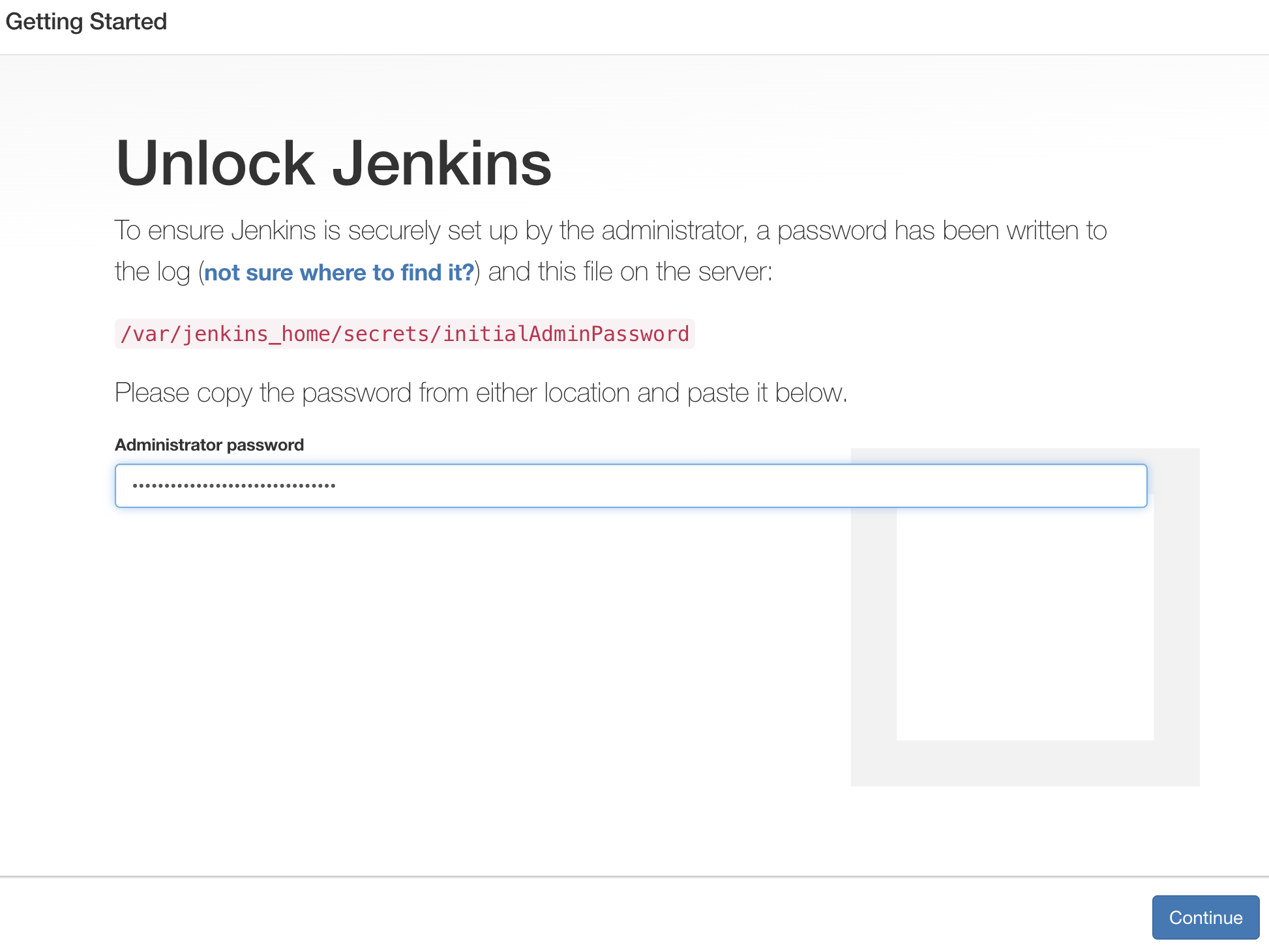
Enter Admin Password

Enter the password and Click on continue.
Then click on install suggested plug-ins. 
Also create user name and password.
enter everything as admin. at least user name as admin password as admin
Click on Save and Finish. Click on start using Jenkins. Now you should see a screen like below:


That's it. You have setup Jenkins successfully using Docker Compose.

To Clean Up Resources

sudo docker compose down


This should stop the Jenkins container that is running.

Click here to learn how to create a FreeStyle job in Jenkins to automate Build and Deployment of Java Web App.
Click here to learn how to create a Pipeline job in Jenkins to automate Build and Deployment of Java Web App.

Watch Steps in YouTube channel:

How to Configure GitLab Runner with Docker Executor on Ubuntu 24.04 EC2

How to Configure GitLab Runner with Docker Executor on Ubuntu 24.04 EC2 In this tutorial, we will configure a self-hosted GitLab R...